TRENDnet
This vendor's wireless products have been discontinued or are no longer widely deployed. This guide is maintained for reference but may not reflect current firmware versions. For modern alternatives, see our Configuration Guides.
This page explains configuration of Captive Portal with authentication through IronWifi for TRENDnet Access Points.
IronWifi Console Configuration
- Create a free 14-day demo account here
- Once you log in to the console, create a new network
- After that, create a new captive portal
Access Point Configuration (TRENDnet controller)
-
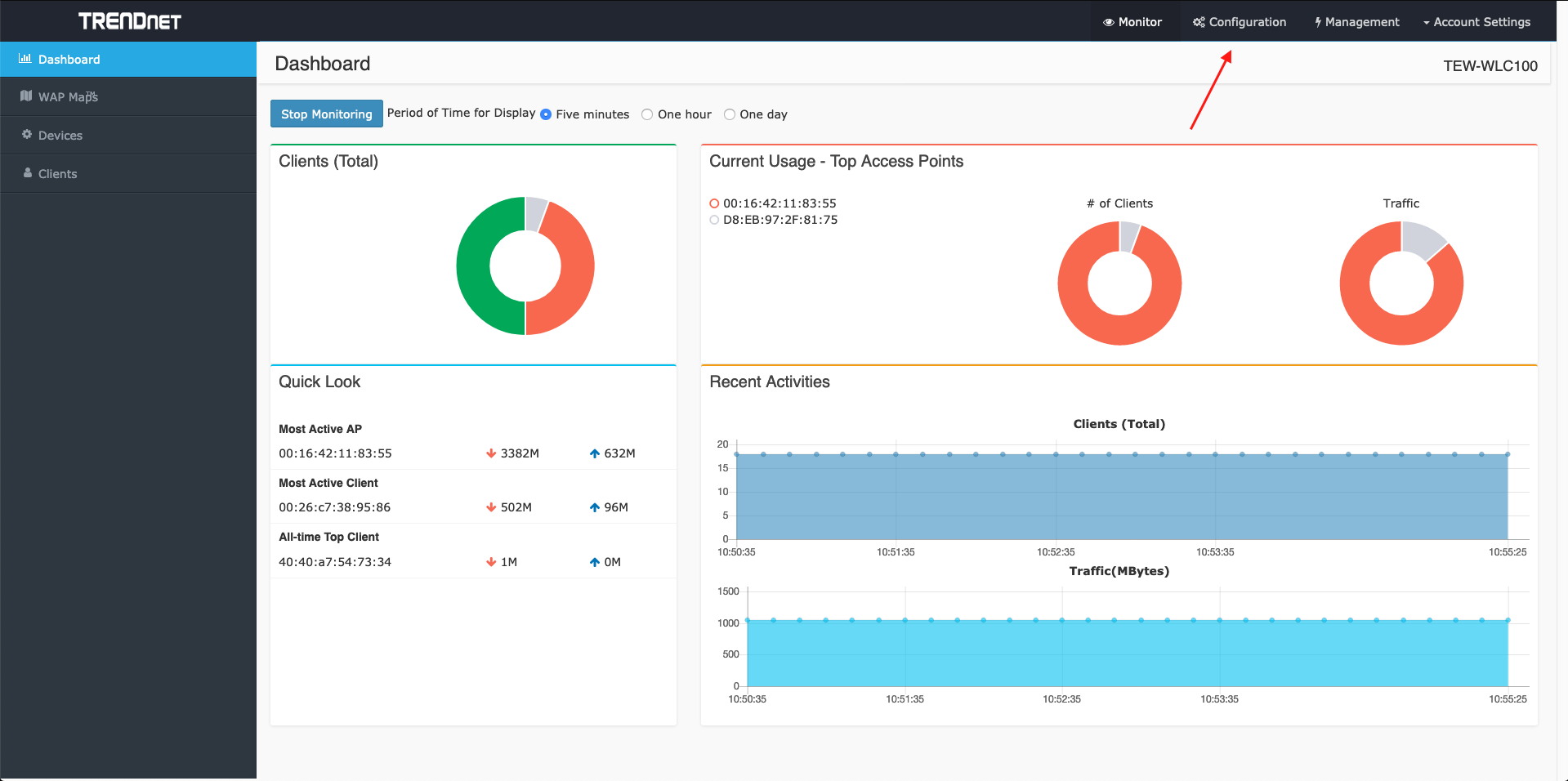
In your TRENDnet controller, navigate to configuration
-
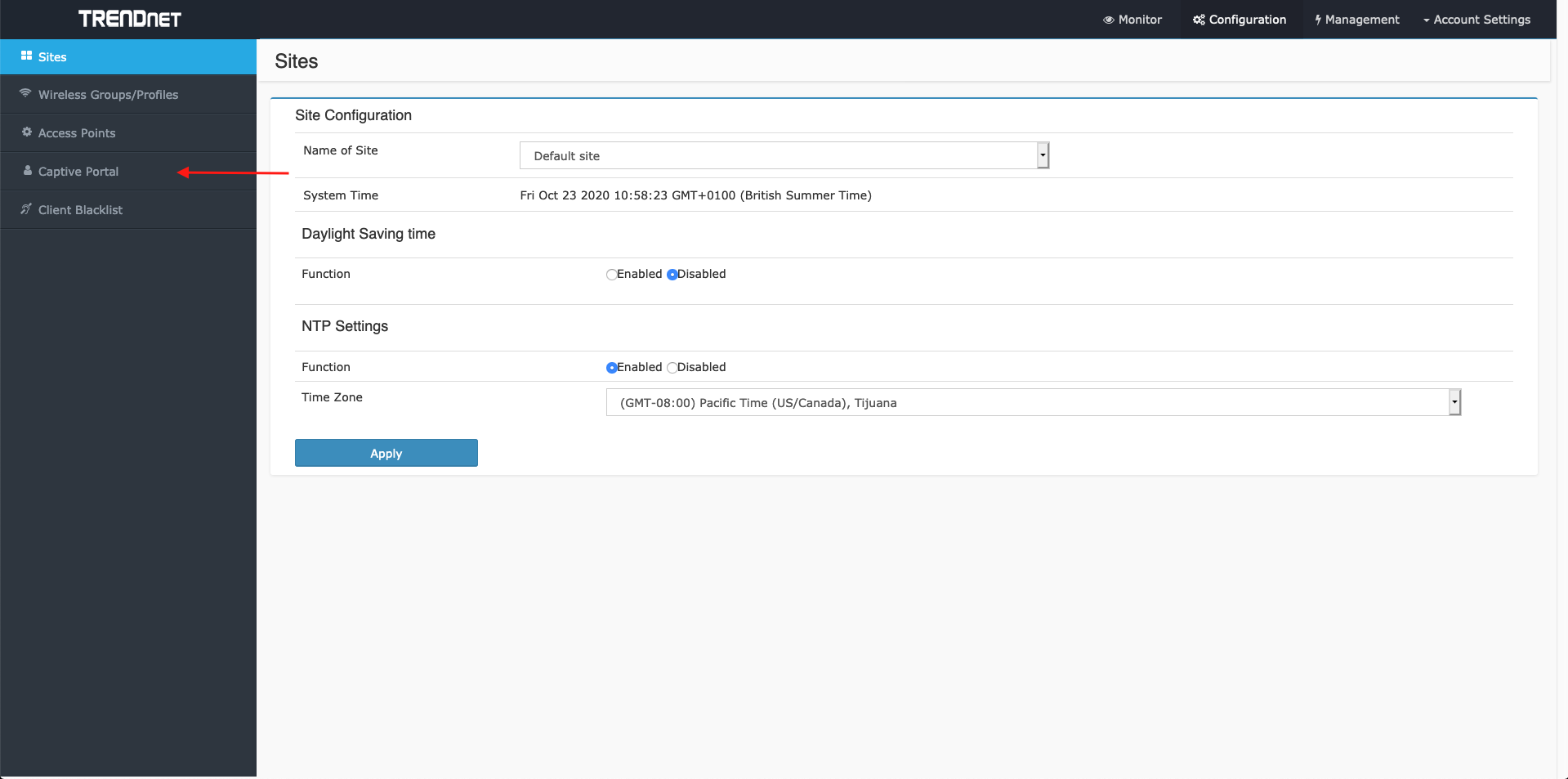
On the left hand side of your screen, click the “Captive Portal” button
-
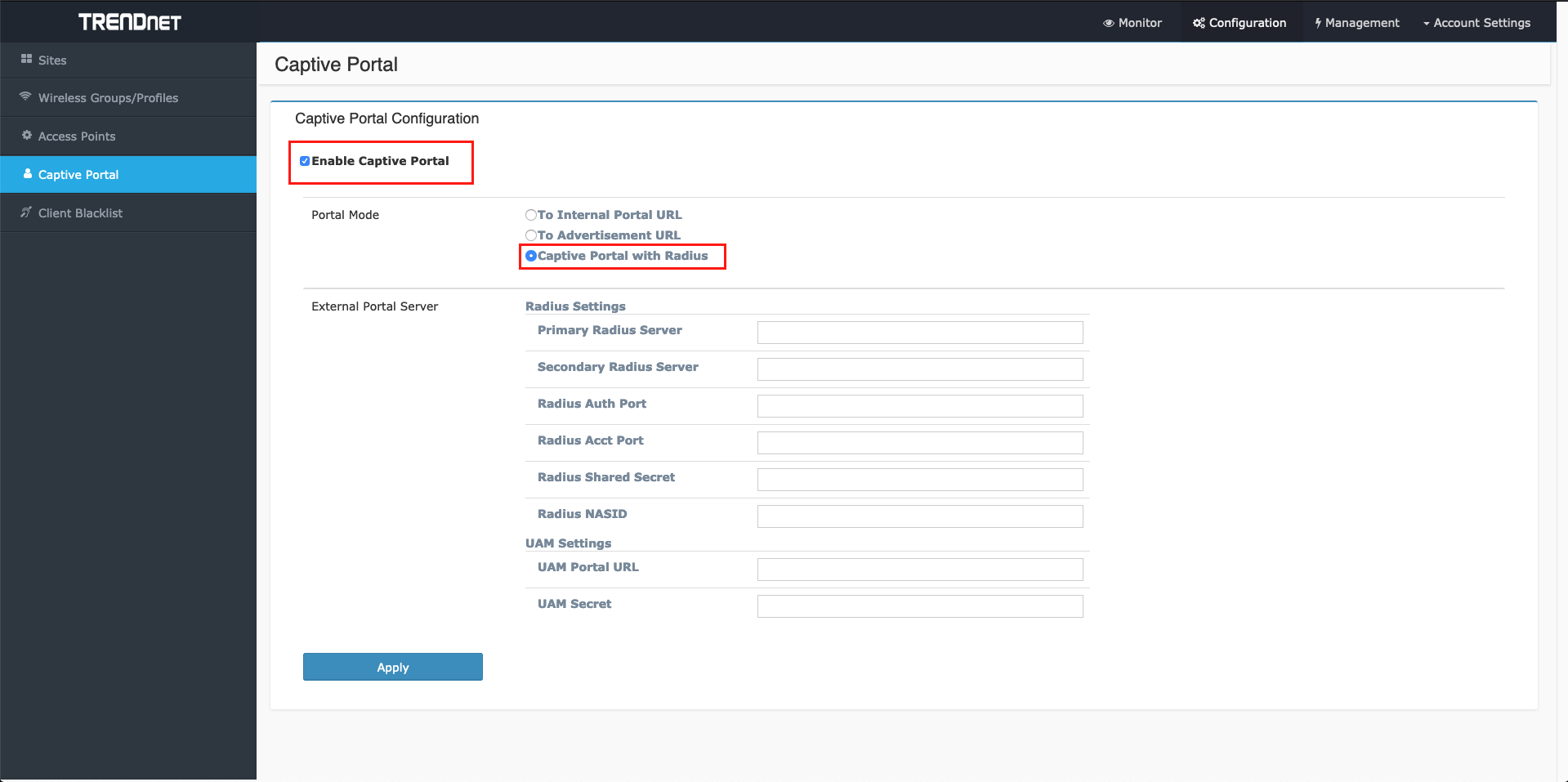
Next, check the “Enable Captive Portal” checkbox, after that, choose “Captive Portal with Radius”
-
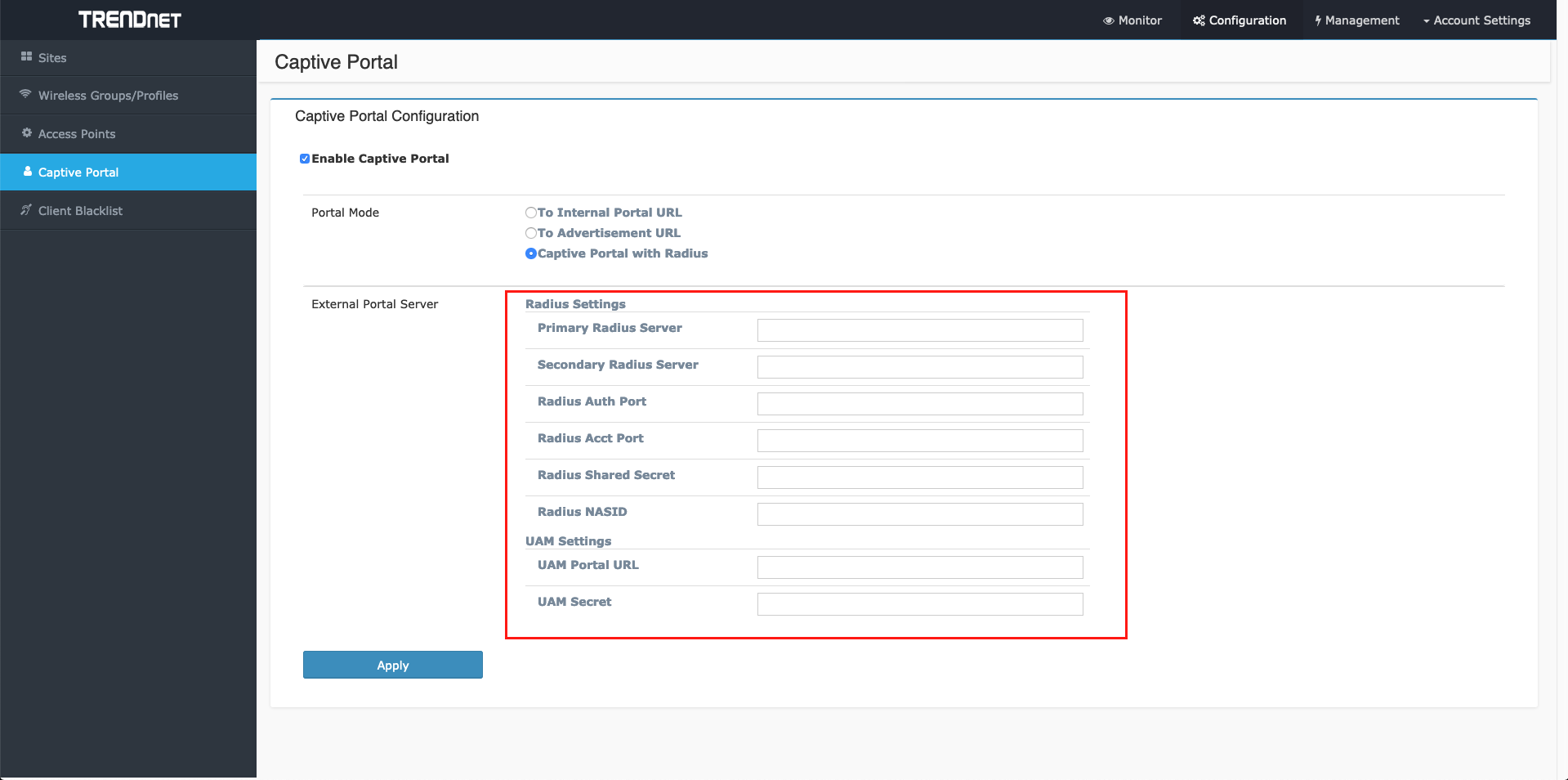
Now, complete the form with information from the IronWifi console, you can find everything under Networks and Captive Portal settings.
! You must also install a valid SSL certificate on your controller/AP, in order to avoid authentication issues !