Aruba Instant AP
Set up Aruba Instant Access Points with IronWiFi for controller-less WiFi management. This guide covers RADIUS server configuration, external captive portal profiles, walled garden whitelist setup, and WPA-Enterprise deployment for both guest and secure employee networks running ArubaOS Instant.
Prerequisites
In Aruba IAP:
- Aruba Instant AP running ArubaOS Instant 8.x or later
- Access to the IAP web interface or CLI
- Administrator credentials
In IronWiFi Console (complete these first):
- Create a Network and note the RADIUS details:
- Primary and backup server IP addresses
- Authentication port () and Accounting port (
{AUTH_PORT}){ACCT_PORT} - Shared secret
- Create a Captive Portal with vendor set to Aruba and note the Splash Page URL
IAP Configuration
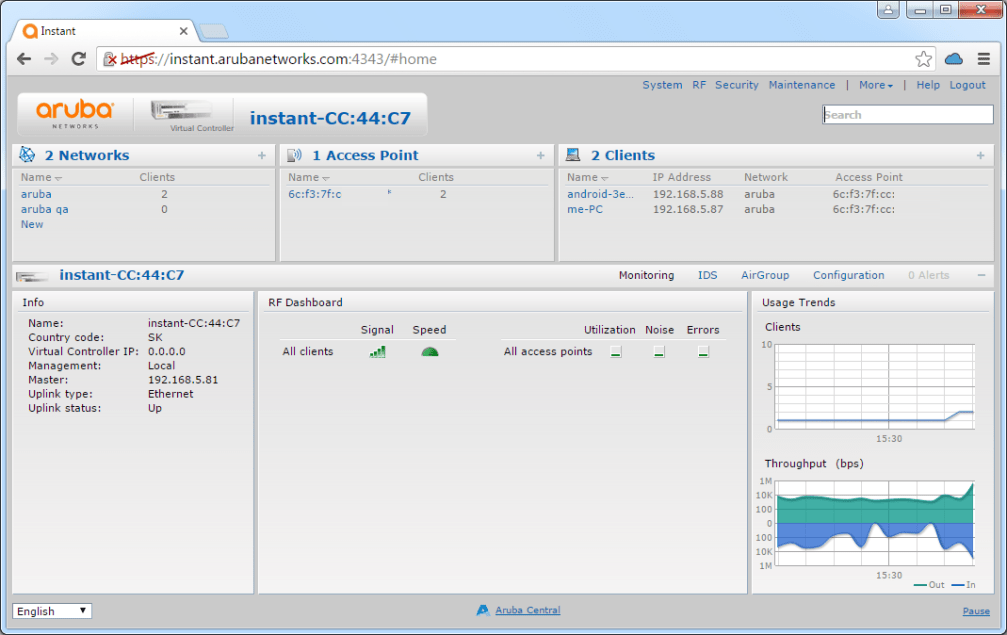
Access Web Interface
- Connect to the Instant AP network
- Navigate to the management IP (e.g., or the AP's IP)
https://instant.arubanetworks.com - Log in as administrator
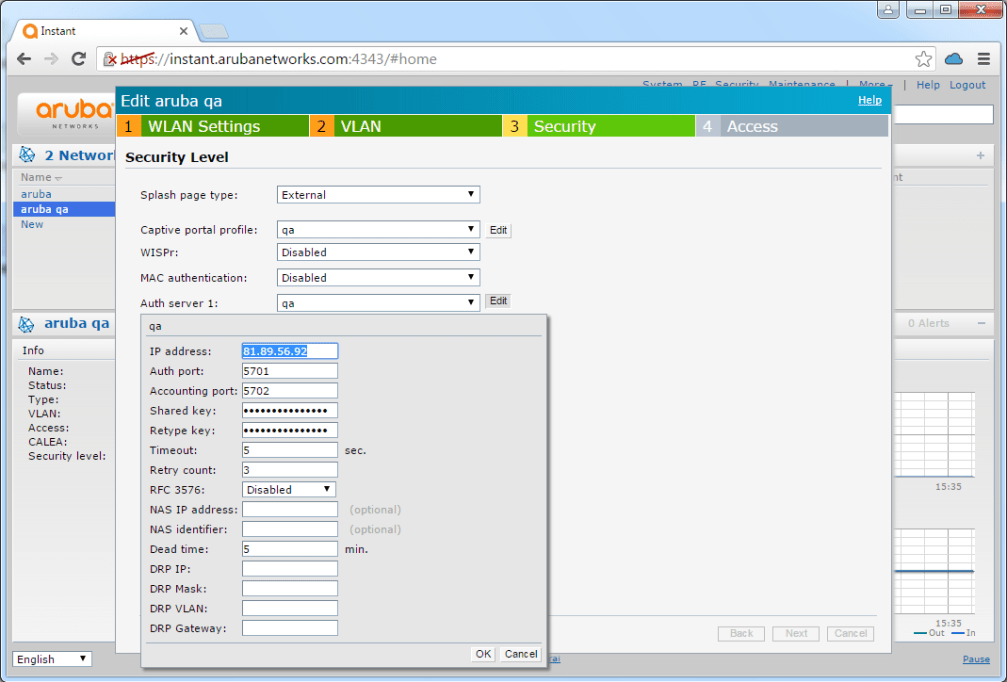
Step 1: Configure RADIUS Server
Have your IronWiFi Console open in another browser tab. You will need to copy the RADIUS IP addresses, ports, and shared secret directly into the IAP configuration.
- Navigate to Security → Authentication Server
- Click New
- Configure primary server:
| Field | Value |
|---|---|
| Name | IronWiFi |
| IP Address | |
| Auth Port | |
| Acct Port | |
| Shared Key | |
- Add backup server with the same settings using the backup IP
Step 2: Create Captive Portal Profile
- Navigate to Security → Captive Portal
- Click New
- Configure:
| Field | Value |
|---|---|
| Name | IronWiFi-Portal |
| Type | External |
| Splash page URL | |
| Auth server | IronWiFi |
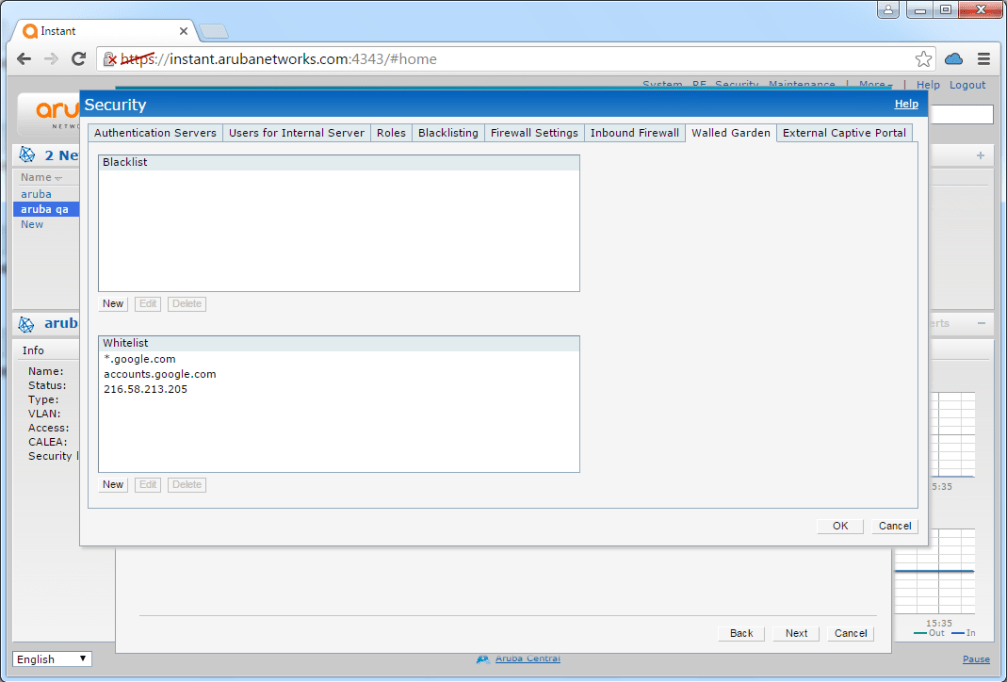
Step 3: Configure Walled Garden
Missing walled garden entries are the most common cause of captive portal failures. Users will see a blank page or timeout if
107.178.250.42
In the captive portal profile, add whitelist entries.
Required Entry
Always add the IronWiFi server:
107.178.250.42
Additional Entries by Authentication Provider
Only add entries for authentication methods you've enabled in IronWiFi:
| Provider | Required Whitelist Entries |
|---|---|
| |
| |
| |
| Twitter/X | |
| Apple | |
| Microsoft Entra ID | |
| Stripe | |
| PayPal | |
| Twilio (SMS) | |
Step 4: Create Guest WLAN
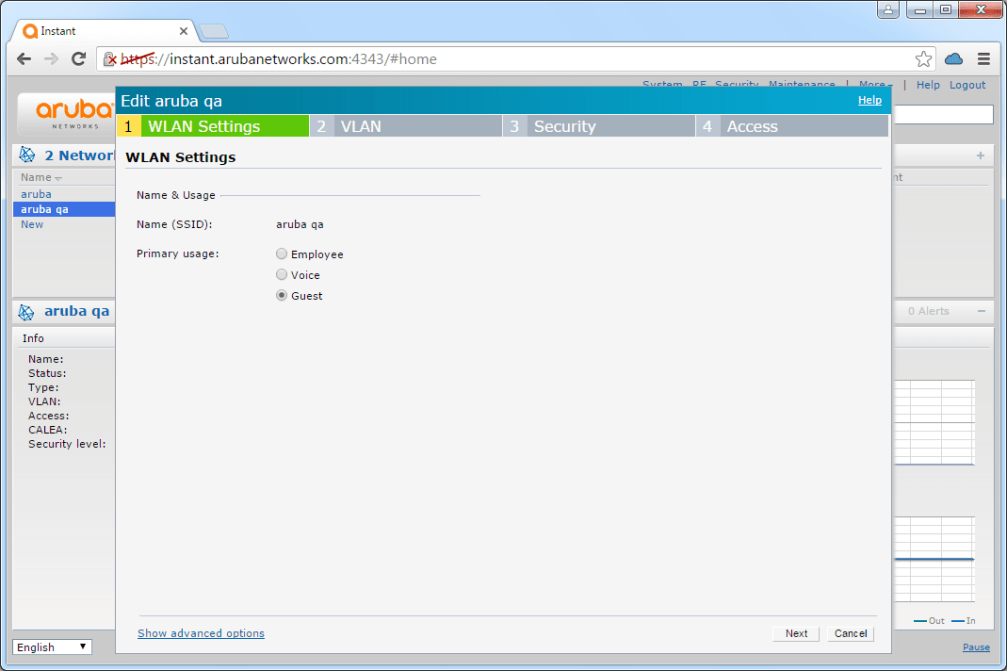
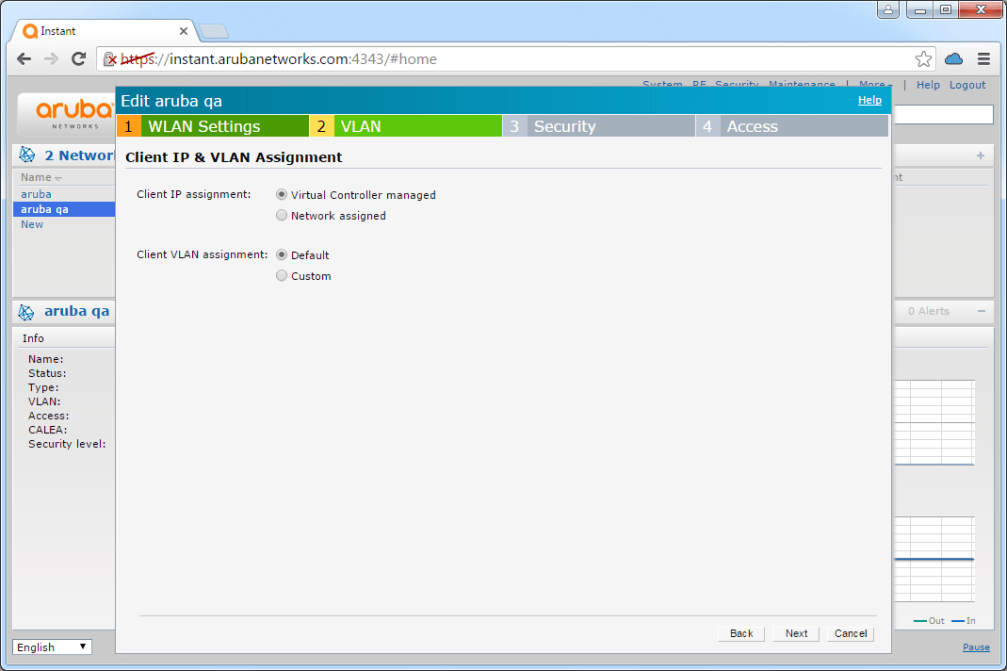
- Navigate to Network → New
- Configure Basic settings:
| Field | Value |
|---|---|
| Name | Guest-WiFi |
| Primary Usage | Guest |
- Configure Security settings:
| Field | Value |
|---|---|
| Splash Page Type | External |
| Captive Portal Profile | IronWiFi-Portal |
| Auth Server 1 | IronWiFi |
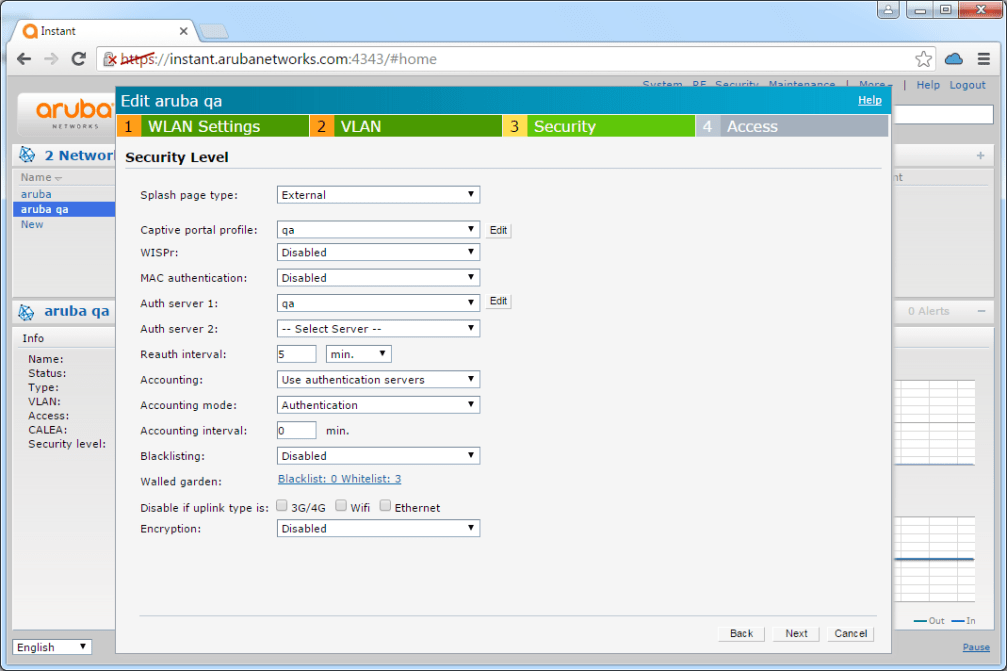
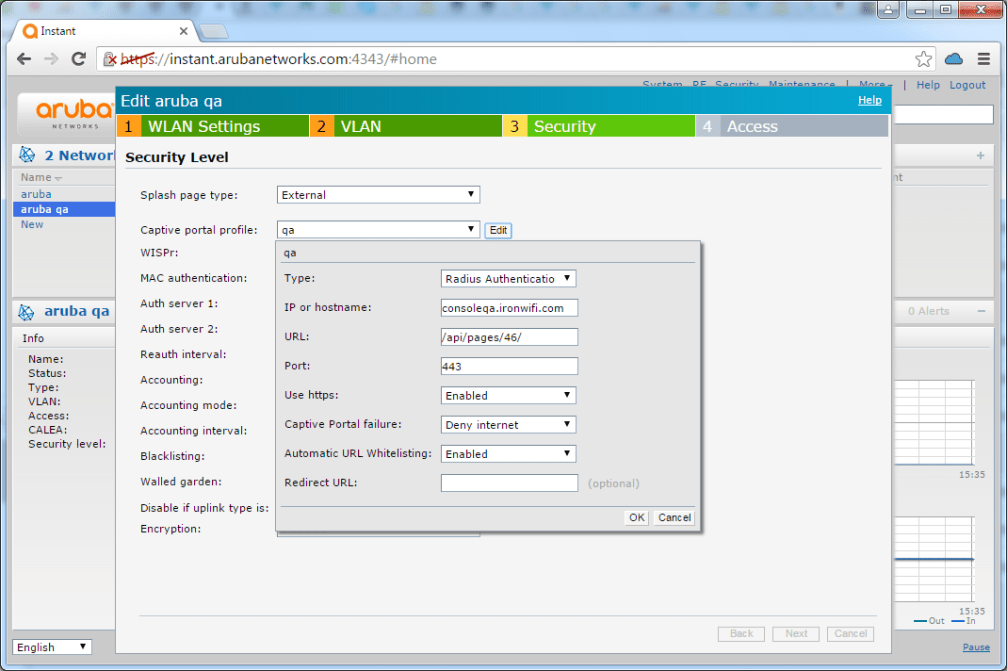
- Configure the RADIUS authentication server by clicking Edit next to Auth server:
- Save the configuration
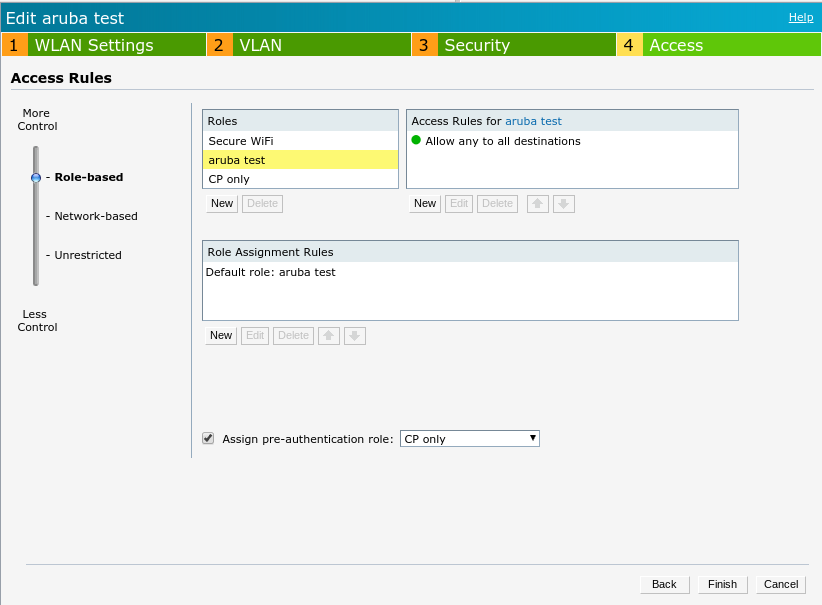
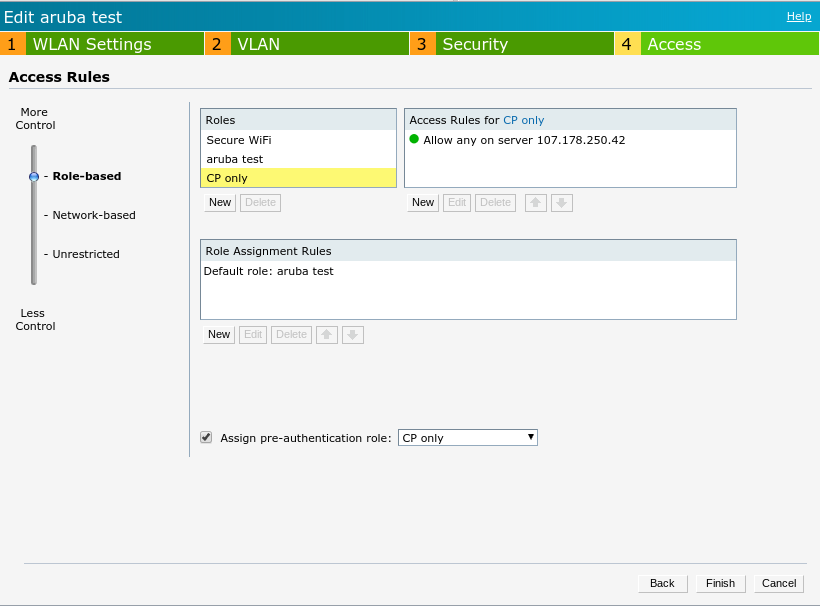
Step 5: Configure Access Rules
Set the initial role with restricted access until authenticated. The default guest role typically allows DNS and DHCP before authentication.
CLI Configuration
For administrators who prefer CLI configuration:
Alternative: WPA-Enterprise (No Captive Portal)
WPA-Enterprise with EAP-TLS (certificate-based) provides the highest security for employee networks. See the client configuration guides for device setup instructions.
For 802.1X authentication where users enter credentials in their device WiFi settings:
Testing and Verification
After completing the configuration, verify everything works correctly.
Test Captive Portal Flow
- Connect a device to the Guest-WiFi SSID
- Open a browser and navigate to
http://example.com - Verify redirect to IronWiFi splash page
- Complete authentication
- Verify internet access is granted
Verification Commands
Troubleshooting
If testing reveals issues, use this section to diagnose common problems.
External Portal Not Loading
| Symptom | Cause | Solution |
|---|---|---|
| Blank page | Missing whitelist entry | Add |
| Wrong page | Incorrect splash URL | Verify URL matches IronWiFi Console |
| Timeout | DNS issues | Ensure DNS is allowed in pre-auth ACL |
Authentication Failures
| Symptom | Cause | Solution |
|---|---|---|
| Timeout | RADIUS unreachable | Verify server IP and firewall rules |
| Reject | Wrong secret | Check shared secret matches exactly |
| No response | Port blocked | Ensure UDP |
Clients Not Getting IP
| Symptom | Cause | Solution |
|---|---|---|
| No IP address | DHCP issue | Check DHCP server configuration |
| Wrong subnet | VLAN mismatch | Verify VLAN settings |
| Stuck in initial role | Role assignment | Check access rule configuration |
Related Topics
For this vendor
Shared configuration
Was this page helpful?