SendGrid Integration
Send WiFi welcome emails, credential delivery, and guest notifications through SendGrid's email platform with customizable templates and delivery tracking.
Overview
The SendGrid integration enables:
- Welcome emails after WiFi signup
- Credential delivery via email
- Marketing emails to WiFi guests
- Transactional notifications (expiry warnings, etc.)
Prerequisites
- IronWiFi account with captive portal
- SendGrid account (sendgrid.com)
- Verified sender domain or email
SendGrid Setup
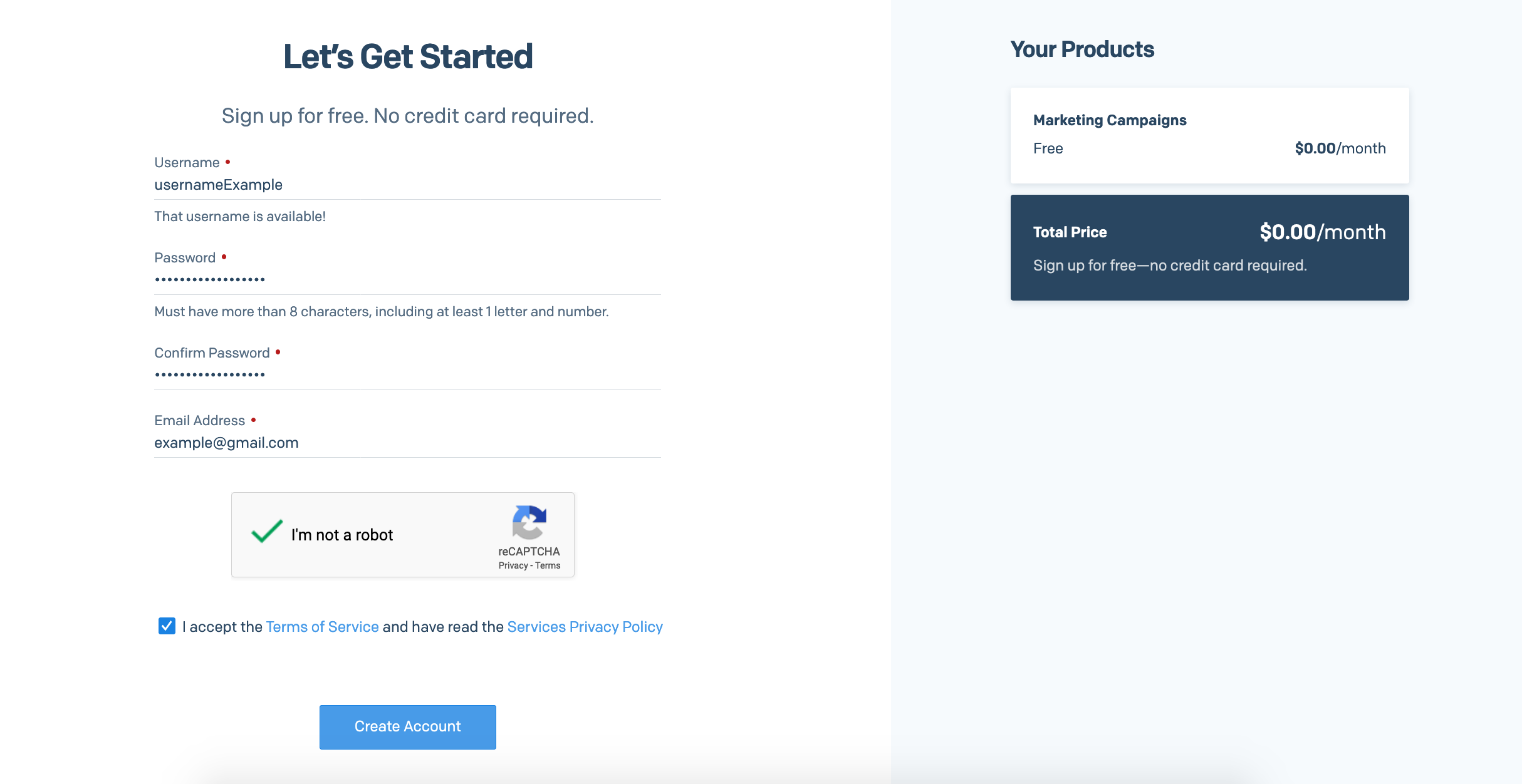
Create SendGrid Account
- Sign up for a free account at sendgrid.com
Create API Key
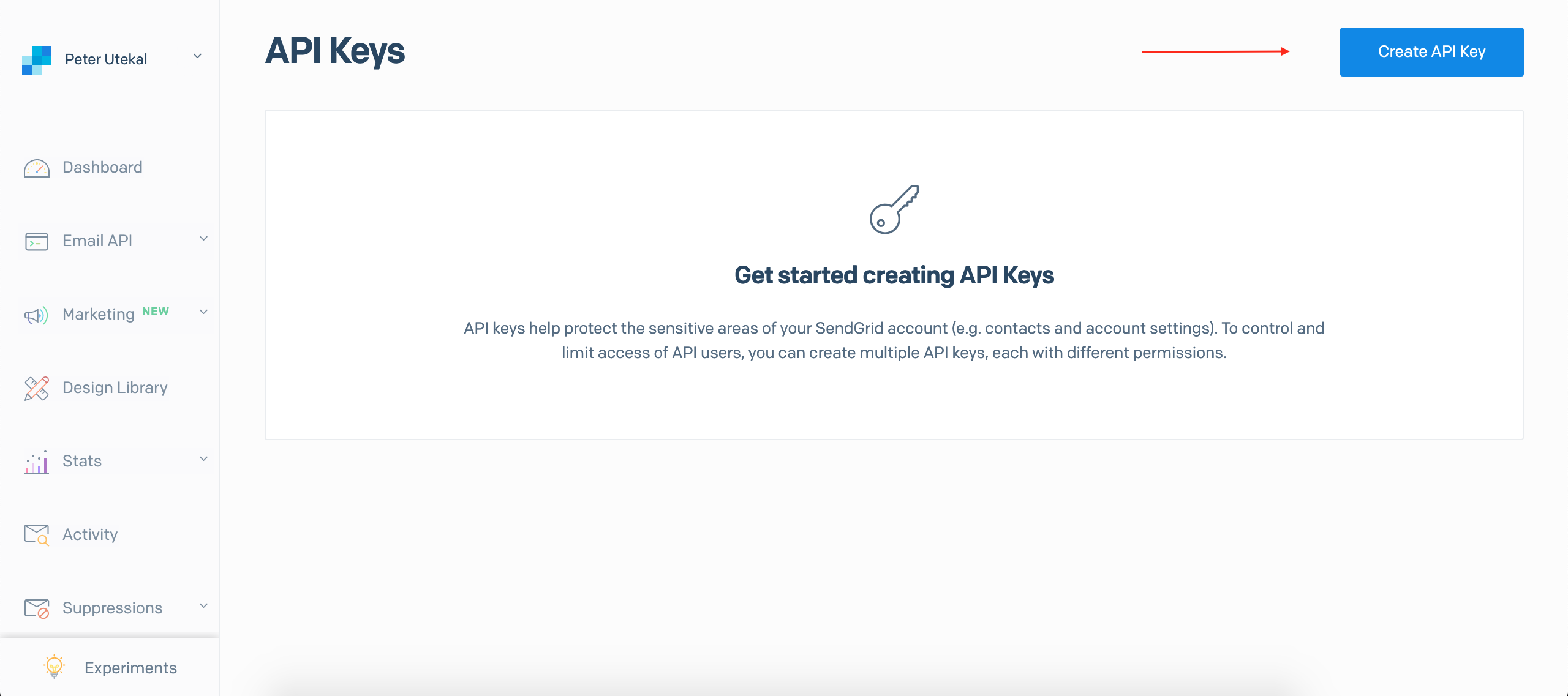
- Log in to SendGrid
- Go to Settings > API Keys
- Click Create API Key
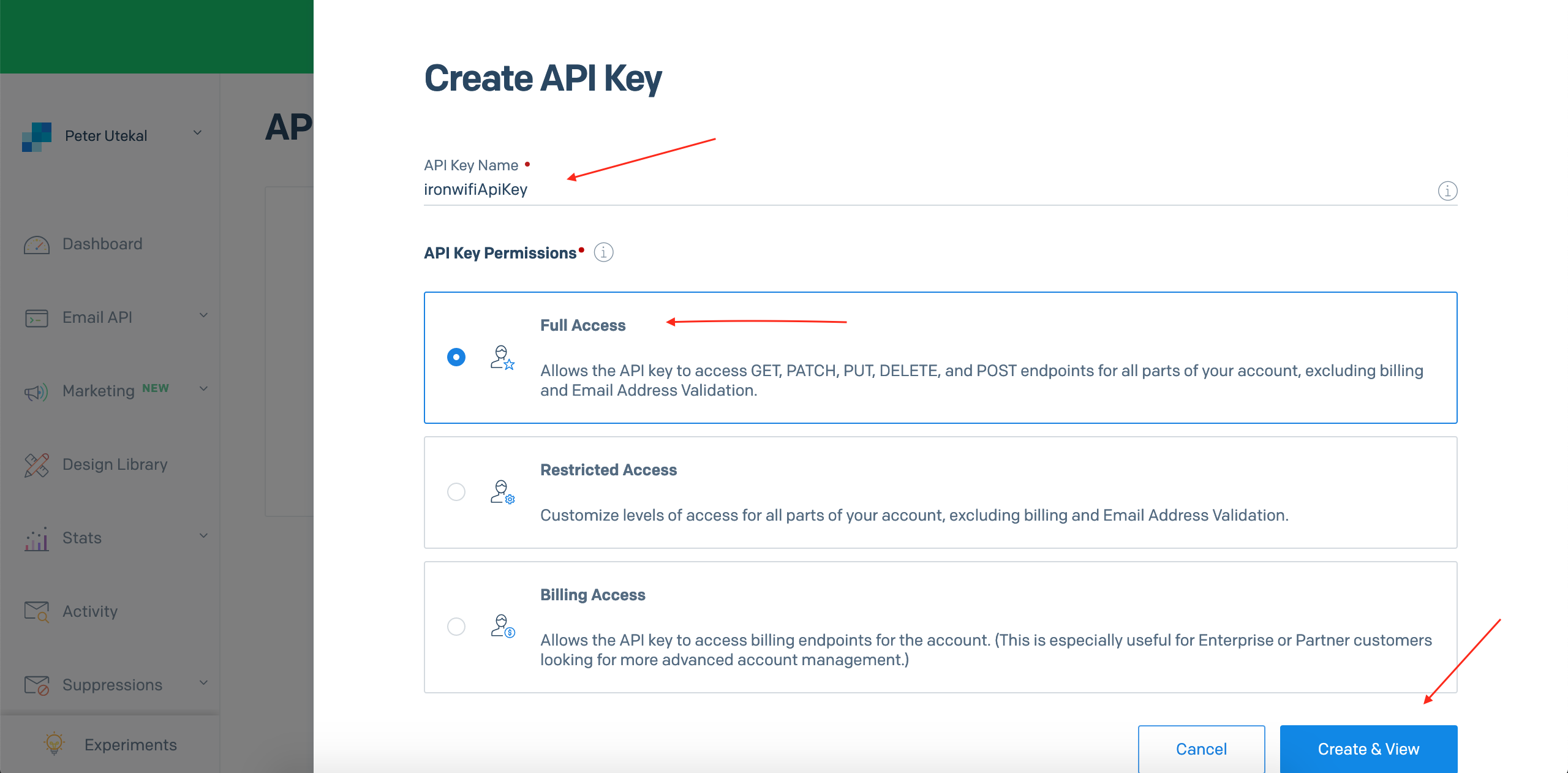
- Name: "IronWiFi Integration"
- Select permissions:
- Mail Send: Full Access
- Marketing: Full Access (optional)
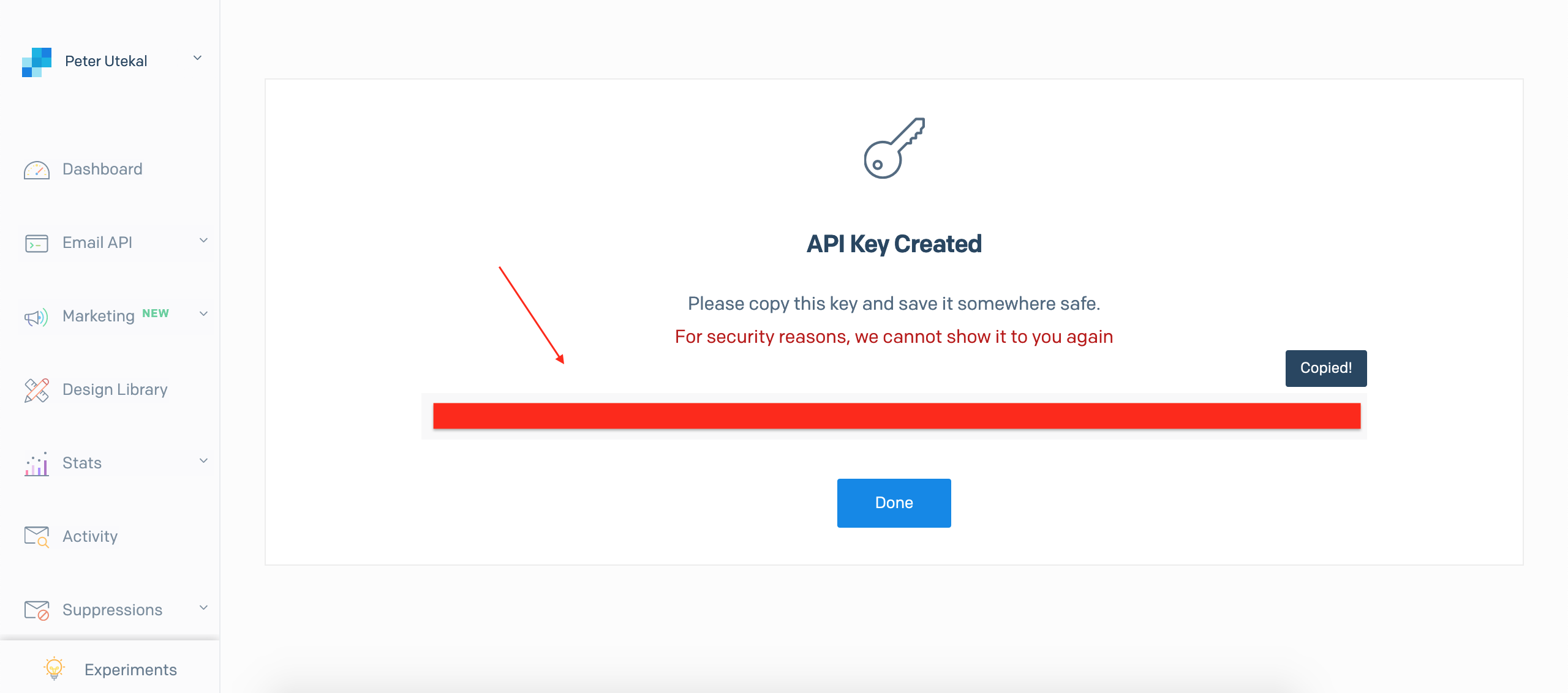
- Copy the API key (shown only once)
Verify Sender
- Go to Settings > Sender Authentication
- Either:
- Domain Authentication: Verify your domain (recommended)
- Single Sender: Verify a single email address
- Follow verification steps
IronWiFi Configuration
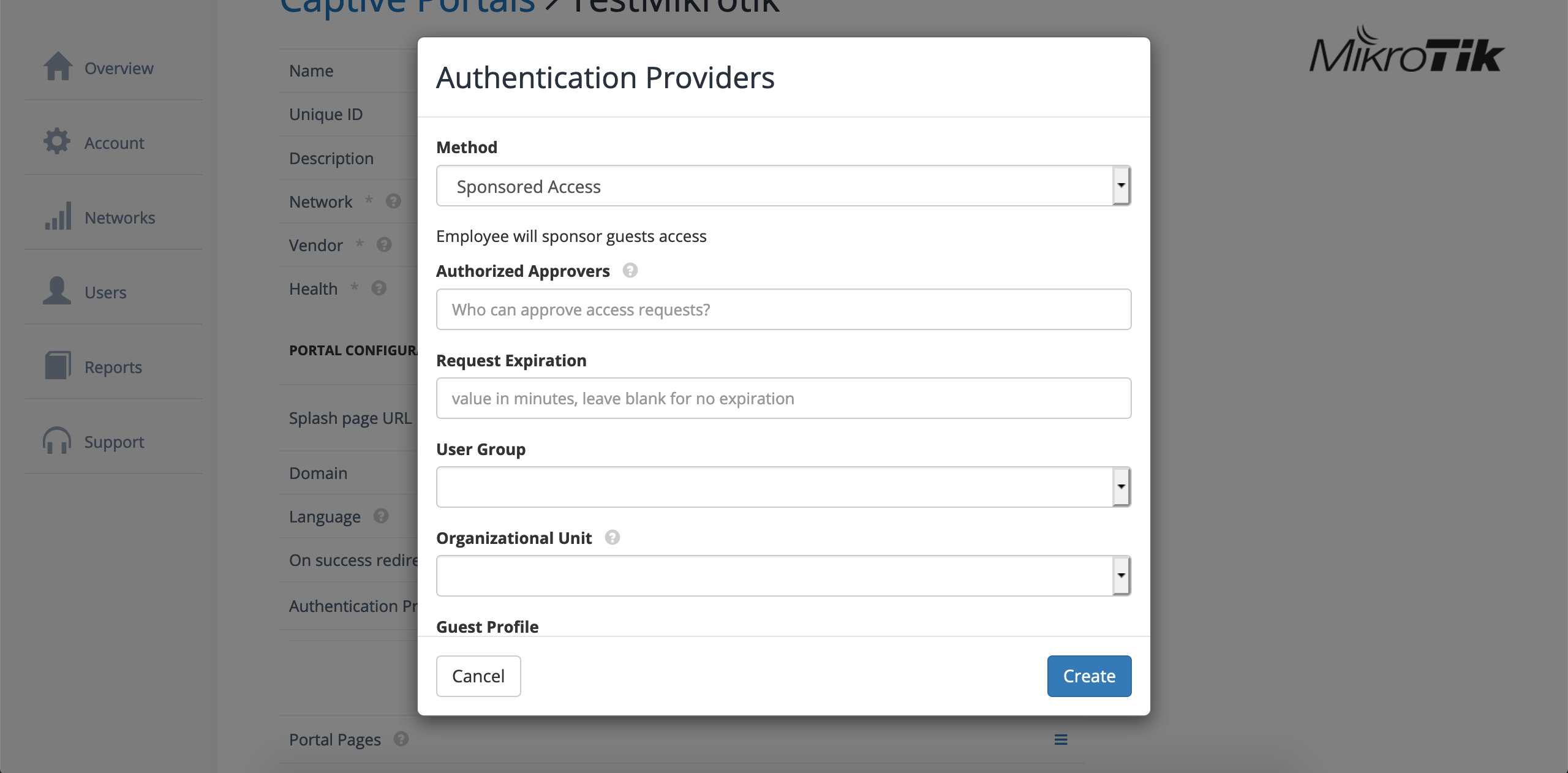
Step 1: Add SendGrid Provider
- Log in to IronWiFi Console
- Navigate to Networks > Captive Portals
- Select your captive portal
- Go to Integrations
- Click Add Integration > SendGrid
Step 2: Configure API
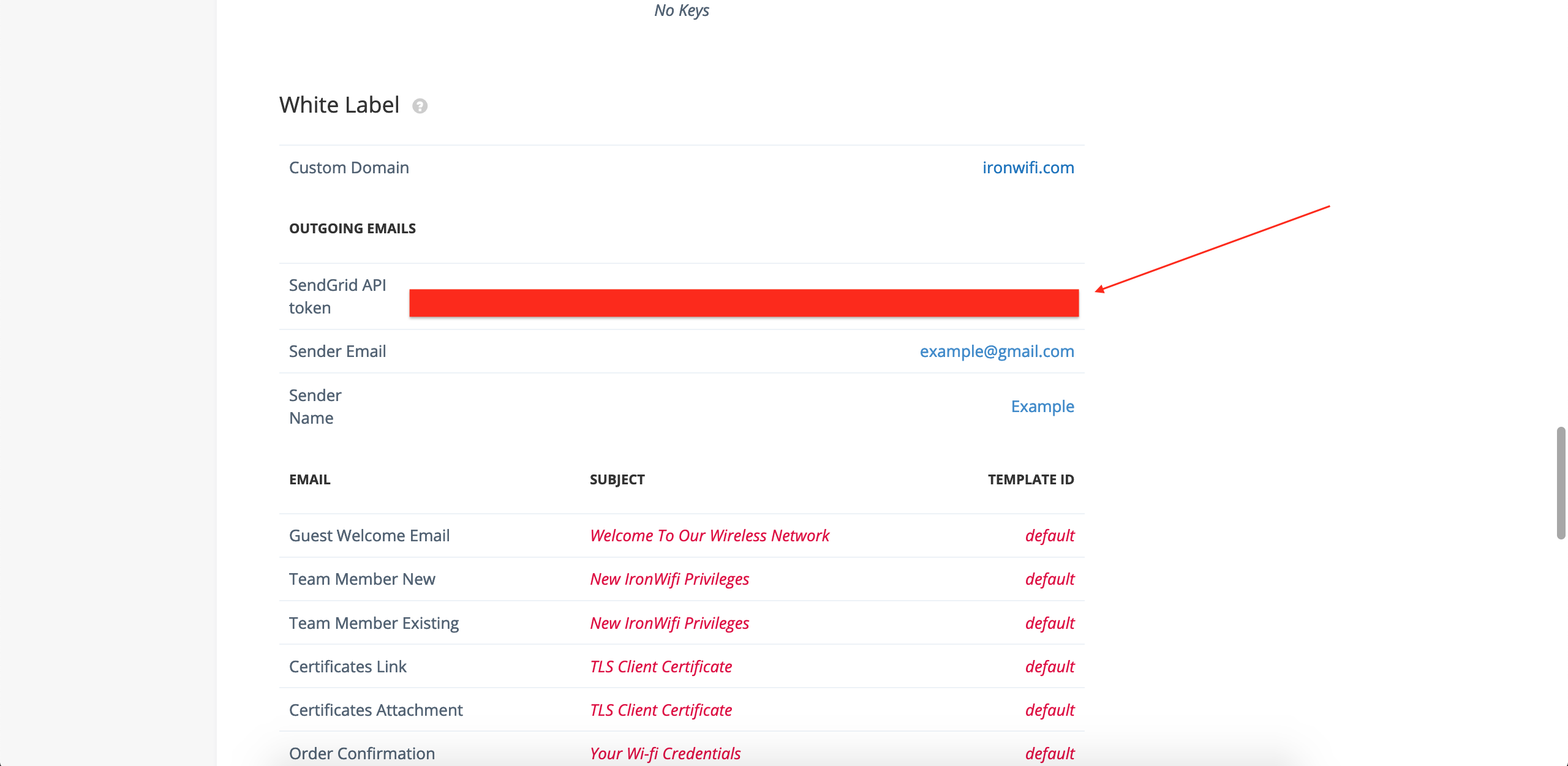
Enter SendGrid details:
- API Key: Your SendGrid API key
- From Email: Verified sender email
- From Name: Display name (e.g., "Guest WiFi")
Step 3: Configure Email Templates
Welcome Email:
Credential Email:
Email Types
Transactional Emails
Automated emails triggered by events:
| Event | |
|---|---|
| Guest Signup | Welcome email |
| Account Created | Credentials email |
| Session Expiring | Warning email |
| Password Reset | Reset link email |
Marketing Emails
Opt-in marketing communications:
- Promotional offers
- Newsletter signups
- Return visit incentives
- Event announcements
Template Configuration
Available Variables
Use these in email templates:
| Variable | Description |
|---|---|
| Guest name |
| Guest email |
| WiFi username |
| WiFi password |
| Network name |
| WiFi location |
| Access expiration |
| Access duration |
| Network display name |
Dynamic Content
Use conditionals in templates:
SendGrid Templates
Use SendGrid Dynamic Templates
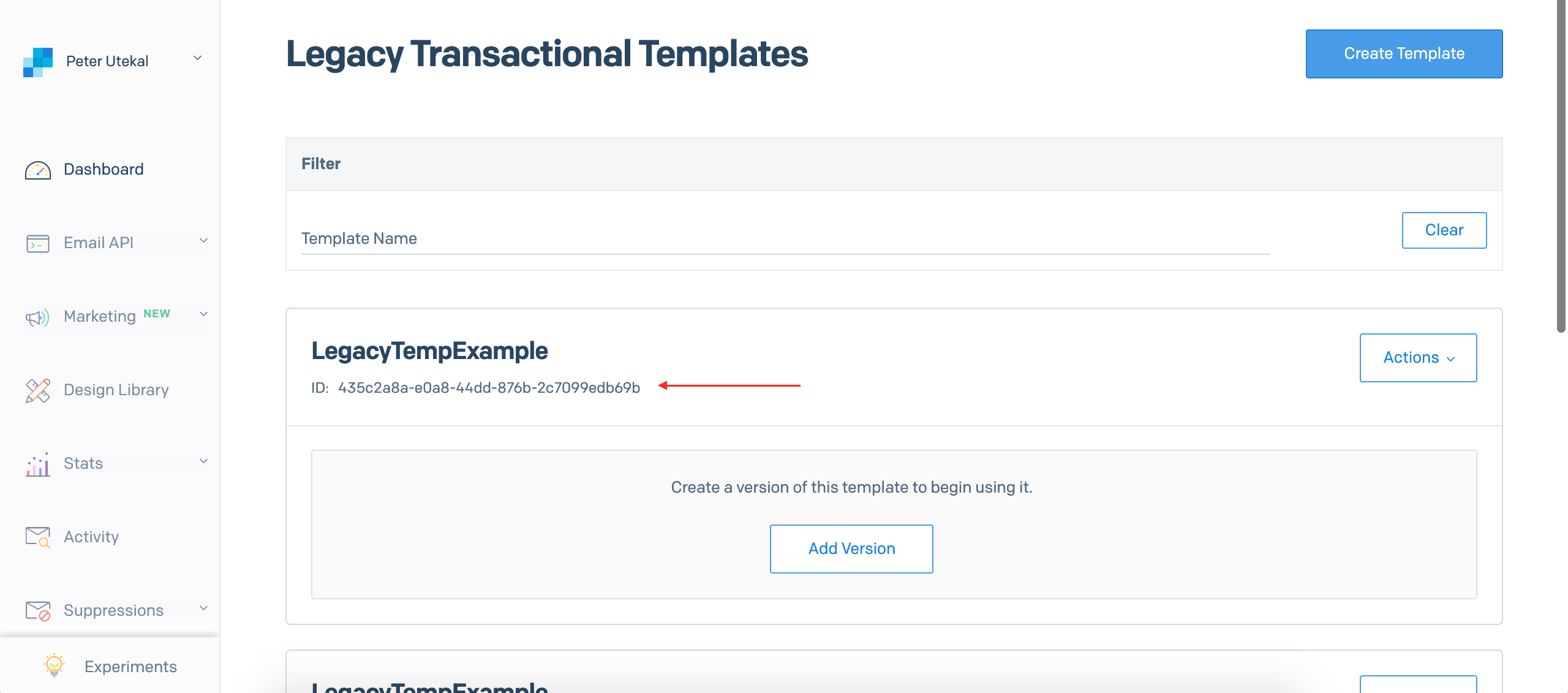
- In SendGrid, go to Email API > Dynamic Templates
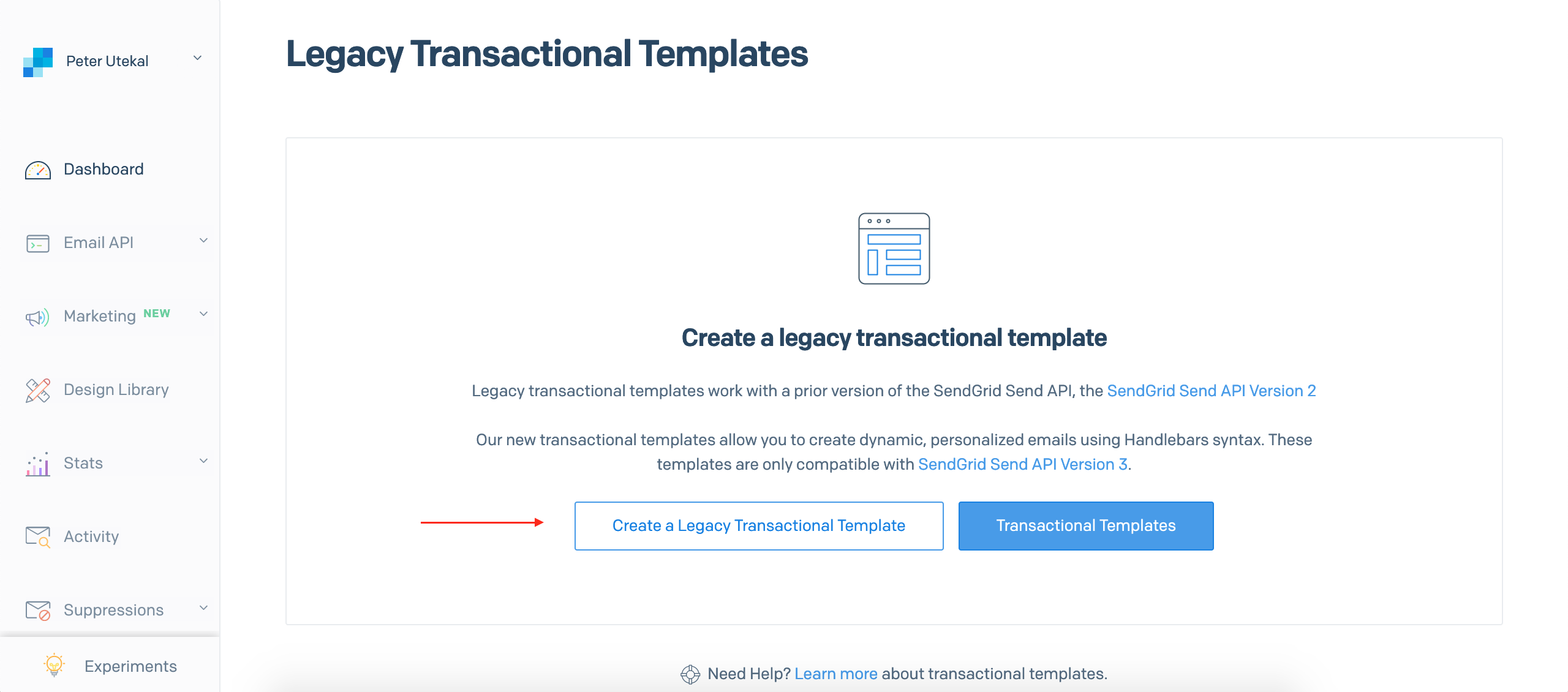
- Create new template
- Name the template and click Save
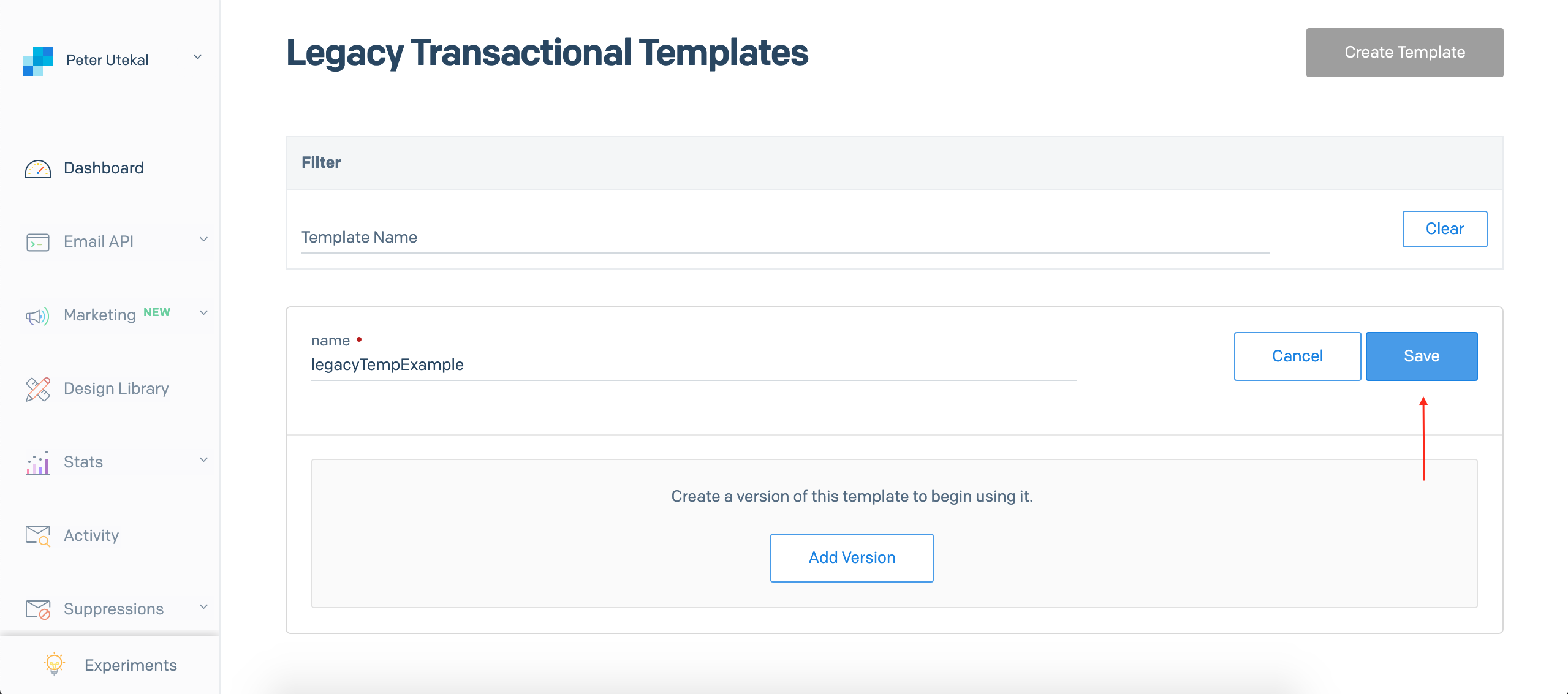
- Note the Template ID after saving
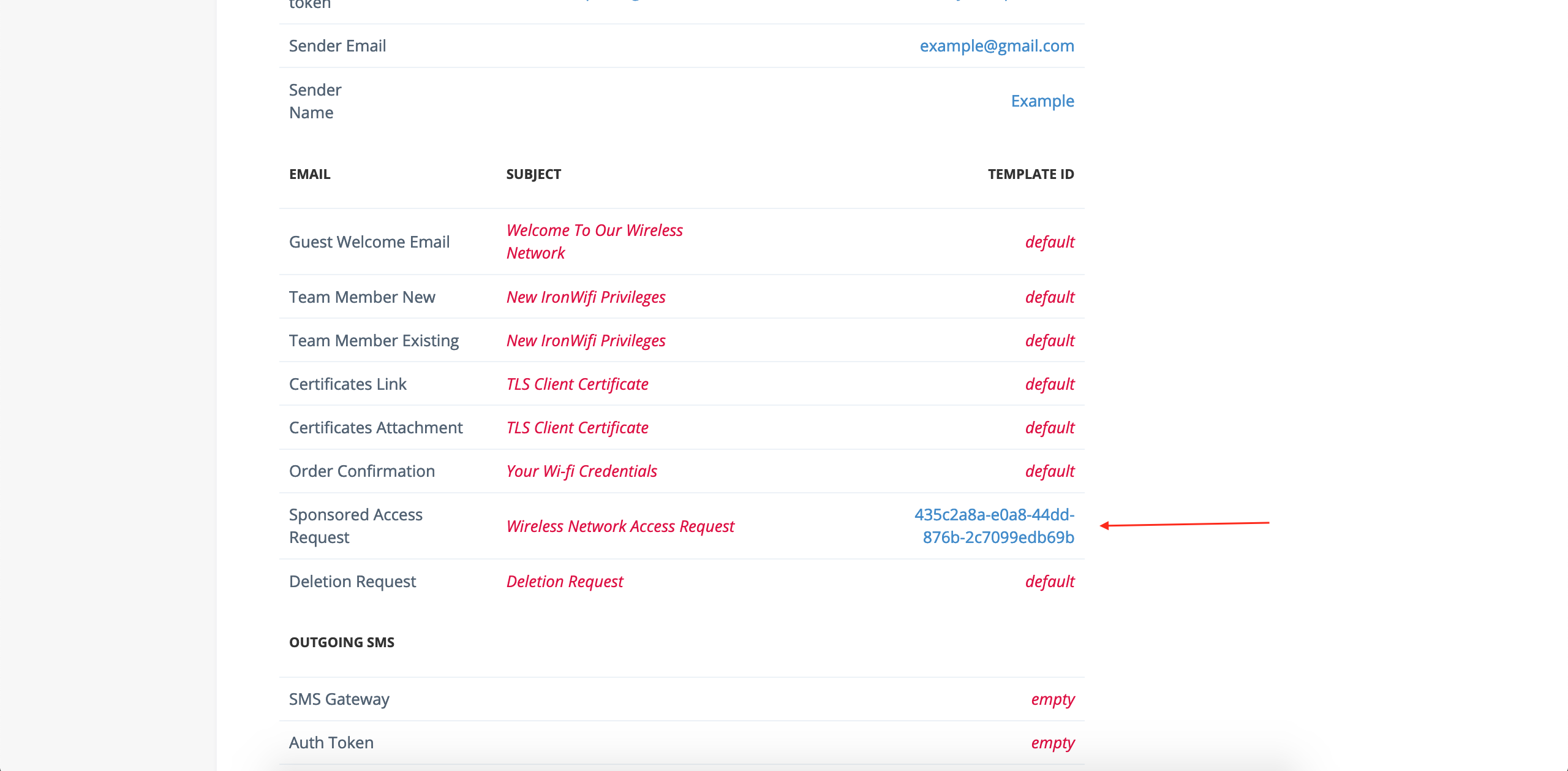
- In IronWiFi, select SendGrid template option
- Enter the Template ID in the corresponding email type row
Template Data
IronWiFi sends data to SendGrid templates:
Deliverability
Best Practices
- Authenticate domain - Set up SPF, DKIM, DMARC
- Warm up IP - Gradually increase sending volume
- Clean list - Remove bounced emails
- Monitor reputation - Check SendGrid analytics
Monitoring
Track email performance in SendGrid:
- Delivery rate
- Open rate
- Click rate
- Bounce rate
- Spam complaints
Advanced Configuration
Categories and Tags
Organize emails with categories:
Click Tracking
Enable click tracking for analytics:
- In SendGrid settings, enable click tracking
- Track links clicked in welcome emails
- Measure engagement
Unsubscribe Management
Configure unsubscribe handling:
- Enable SendGrid unsubscribe groups
- Add unsubscribe link to marketing emails
- Respect unsubscribe preferences
Troubleshooting
Emails Not Sending
- Verify API key is correct
- Check sender is verified
- Review SendGrid activity feed
- Check for blocked emails
Emails Going to Spam
- Authenticate your domain
- Check content for spam triggers
- Review sender reputation
- Warm up sending gradually
Template Errors
- Verify variable names match
- Check template syntax
- Test with SendGrid preview
- Review error logs
Compliance
GDPR
- Collect consent for marketing emails
- Include unsubscribe option
- Honor data deletion requests
- Document consent
CAN-SPAM
- Include physical address
- Clear unsubscribe mechanism
- Accurate sender information
- No misleading subject lines
Best Practices
- Keep emails simple - Clear, concise content
- Mobile-friendly - Responsive design
- Test thoroughly - Preview before sending
- Monitor metrics - Track and improve
- Segment audiences - Relevant content
Related Topics
- Twilio Integration - SMS notifications
- Captive Portals
- Authentication Providers
Was this page helpful?