Users
Users in IronWiFi represent any entity that authenticates to your network. This includes employees, guests, contractors, and devices using MAC address authentication. Each user has credentials, attributes, and group memberships that control their network access.
User Properties
Basic Information
| Field | Description |
|---|---|
| Username | Unique identifier for authentication |
| Full Name | User's first and last name |
| Email address (used for certificate delivery with TLS authentication) | |
| Organizational Unit | The unit the user belongs to (inherits group membership and attributes) |
Authentication Settings
| Field | Description |
|---|---|
| Authentication Source | Identity database for credential validation |
| Password | Clear-text password for local verification |
| Status | Enabled (can authenticate) or Disabled (all requests rejected) |
| Login Time | Time periods when authentication is allowed |
Authentication Sources
- local - Verify using IronWiFi's internal password database
- google - Forward requests to Google servers for verification
- rest - Use a REST API for credential verification
- LDAP - Test credentials against external AD/LDAP server
Google, REST, and LDAP authentication sources require a configured Connector.
Time-Based Access
The Login Time field restricts when users can authenticate:
Format examples:
- - Weekdays 11:05 PM to 8:55 AM
Wk2305-0855 - - Saturday and Sunday 11:05 PM to 4:55 PM
Sa,Su2305-1655 - or
Any- All daysAl
All times are in UTC timezone.
Status Information
| Field | Description |
|---|---|
| Creation Date | When the user account was created |
| Last Seen | Most recent authentication attempt |
Groups
Users can be members of multiple groups and inherit attributes from them.
Adding Group Membership
- Click Add to Group
- Select the Group
- Assign a Priority (1-10)
- Click Save
Priority
Priority determines the evaluation order of group membership:
- 1 = Highest priority
- 10 = Lowest priority
Evaluation continues through all groups until a match is found (all Check Attributes match the request). When matched, group Reply attributes are added to the Response, and no further groups are checked.
Certificates
IronWiFi supports certificate-based authentication using EAP-TLS protocol. Each user can have multiple certificates for different devices.
Generating a Certificate
- Click Add Certificate
- Select Distribution method
- Set Validity period
- Click Create
Distribution Options
| Option | Description |
|---|---|
| Download certificate | Certificate downloads to admin's browser; import password shown in popup |
| Email to User | User receives email with certificate attachment and import password |
| Email download link | User receives email with password and one-time download link |
You can customize outgoing emails to match your company brand.
Attributes
Users can have check and reply attributes that control session behavior and provide control mechanisms for your NAS/controller. Additional attributes can be inherited from Organizational Units or Groups.
Adding Attributes
- Click Add Attribute
- Search by name or select vendor
- Configure the attribute settings
Attribute Tables
| Table | Description |
|---|---|
| check | Received value is compared to pre-defined value |
| reply | If check matches, this attribute is returned to NAS/Controller |
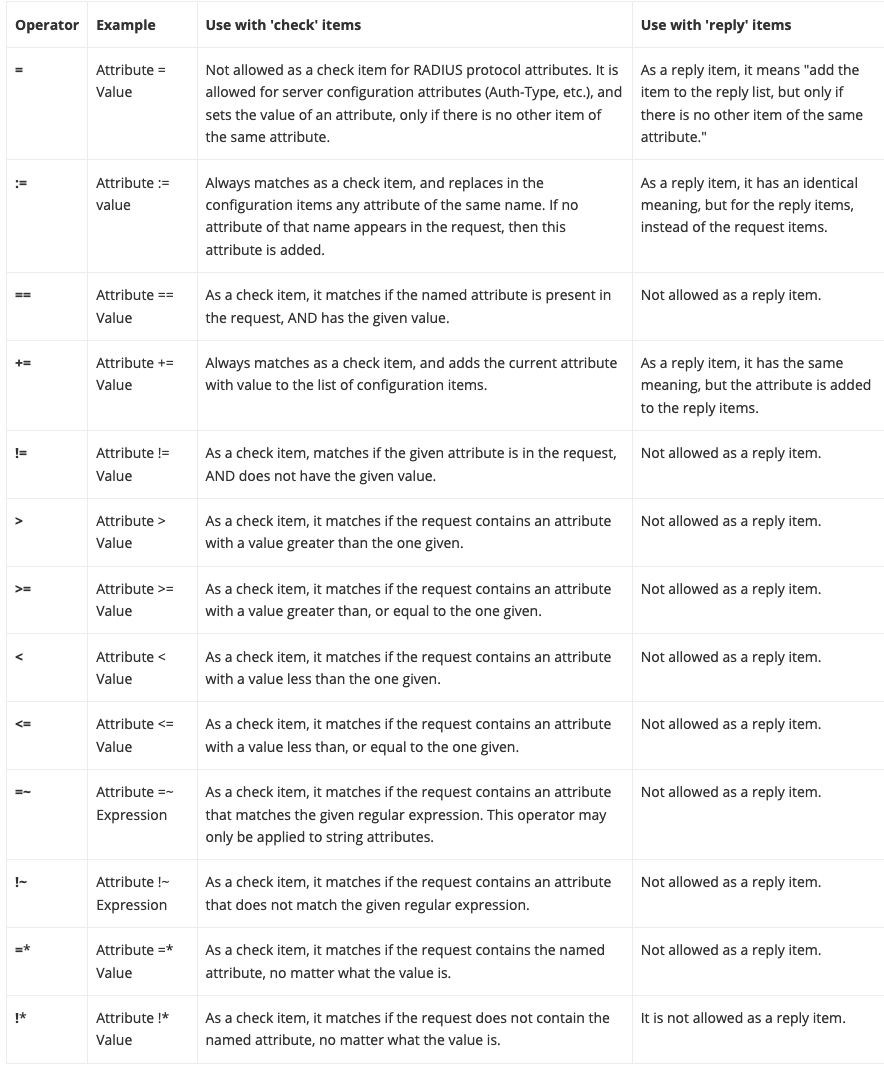
Operators
| Operator | Symbol | Description |
|---|---|---|
| Equal | | Attribute must exactly match |
| Not Equal | | Attribute must not match |
| Greater Than | | Attribute must be greater |
| Less Than | | Attribute must be less |
| Contains | | Attribute contains value |
| Assign | | Assign value to attribute |
| Add | | Add to existing value |
Common Attributes
| Attribute | Purpose |
|---|---|
| User's password |
| Maximum session duration (seconds) |
| Disconnect after idle period (seconds) |
| Max concurrent sessions |
| Download bandwidth limit (bps) |
| Upload bandwidth limit (bps) |
Bulk Operations
Import Users
Import users from CSV file:
- Navigate to Users > Import
- Upload your CSV file
- Map columns to user fields
- Review and confirm import
Export Users
Export user data:
- Navigate to Users > Export
- Select fields to include
- Choose format (CSV, JSON)
- Download the file
Frequently Asked Questions
Q: How do I reset a user's password?
Navigate to Users, select the user, and update the
Cleartext-Password
Q: Can a user belong to multiple groups at the same time?
Yes. Users can be members of multiple groups, each with a priority (1 = highest, 10 = lowest). During authentication, groups are evaluated in priority order. The first group whose check attributes match determines the reply attributes returned to the access point.
Q: How do I import users in bulk?
Navigate to Users > Import and upload a CSV file with user data. Map the CSV columns to IronWiFi user fields (username, email, password, etc.), review the preview, and confirm the import. You can also use the REST API or SCIM provisioning for automated bulk operations.
Q: What happens when I disable a user account?
When a user's status is set to Disabled, all authentication requests for that user are immediately rejected. Active sessions may continue until the next reauthentication event or session timeout, depending on your access point configuration.
Q: Are all times in the Login Time field in UTC?
Yes. All Login Time values use UTC timezone. For example,
Wk0900-1700
Related Topics
- Groups and Access Policies -- apply shared bandwidth limits, session timeouts, and VLAN assignments
- RADIUS Attributes -- configure check and reply attributes for fine-grained access control
- Vouchers -- generate temporary access codes for guests
- Identity Provider Connectors -- sync users from Google Workspace, Microsoft Entra ID, and LDAP
- Troubleshooting Authentication -- diagnose user login failures
Was this page helpful?