Service Monitor
Set up external monitoring to receive alerts if IronWiFi services become unavailable. This guide shows you how to configure UptimeRobot to monitor your RADIUS servers and captive portals.
Setting Up External Monitoring
We recommend using UptimeRobot (or similar service) to independently monitor IronWiFi services.
Step 1: Create UptimeRobot Account
- Navigate to uptimerobot.com
- Sign up for a free account
- Verify your email address
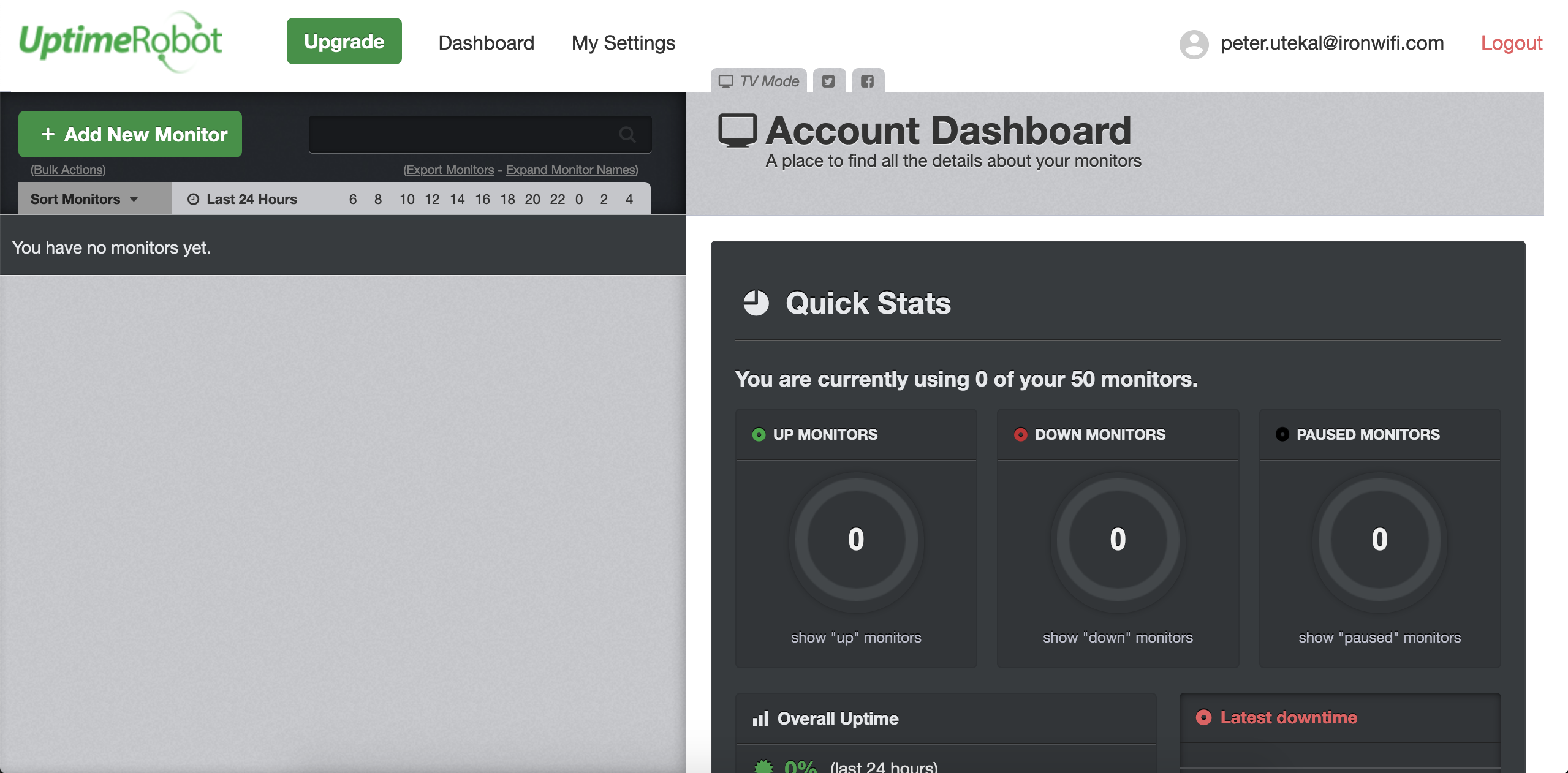
- Log in to your dashboard
Step 2: Create Test User
- Log into the IronWiFi Console
- Navigate to Users
- Create a test user with known credentials
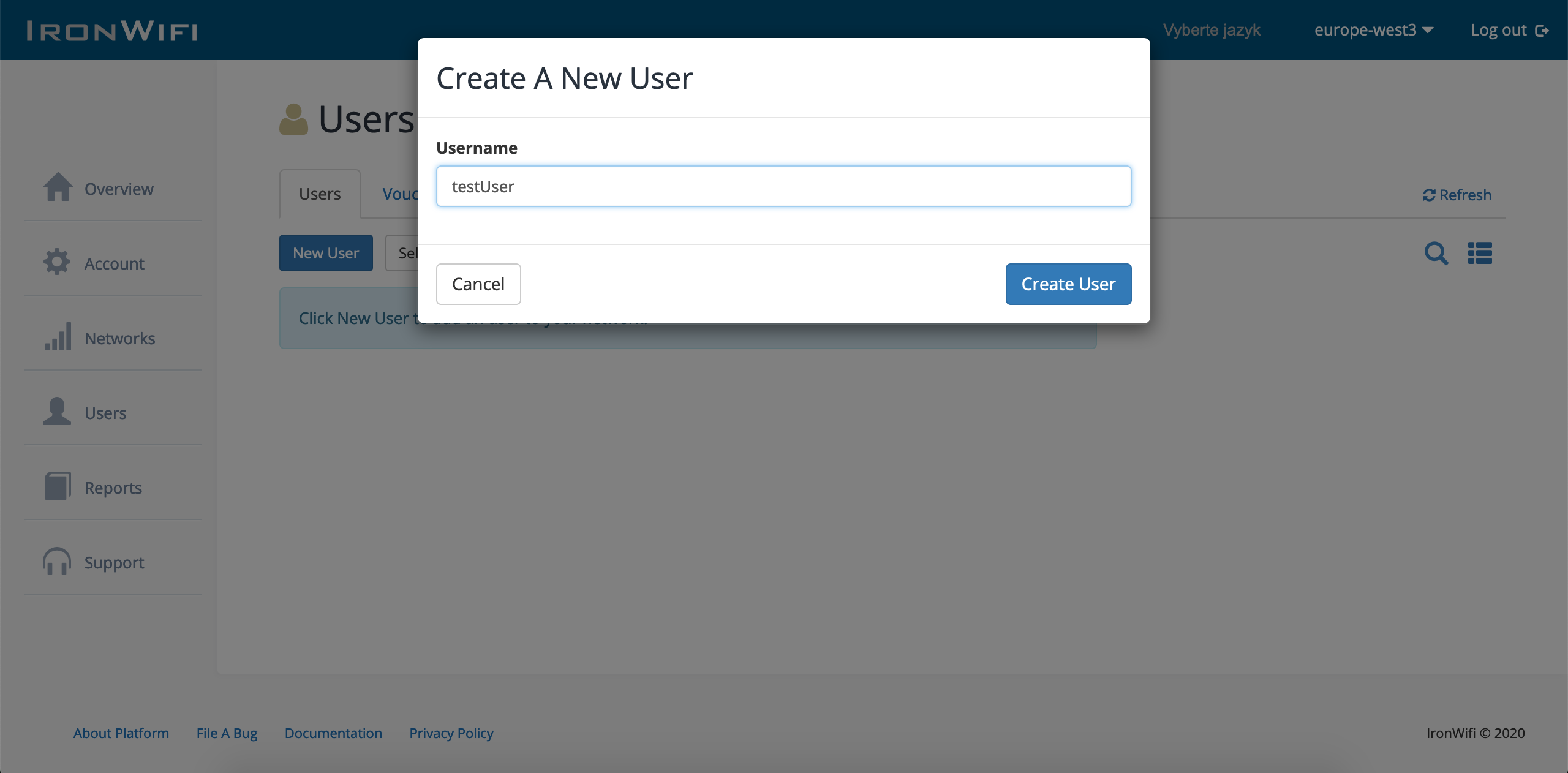
- Note the username and password
Step 3: Get RADIUS Server Details
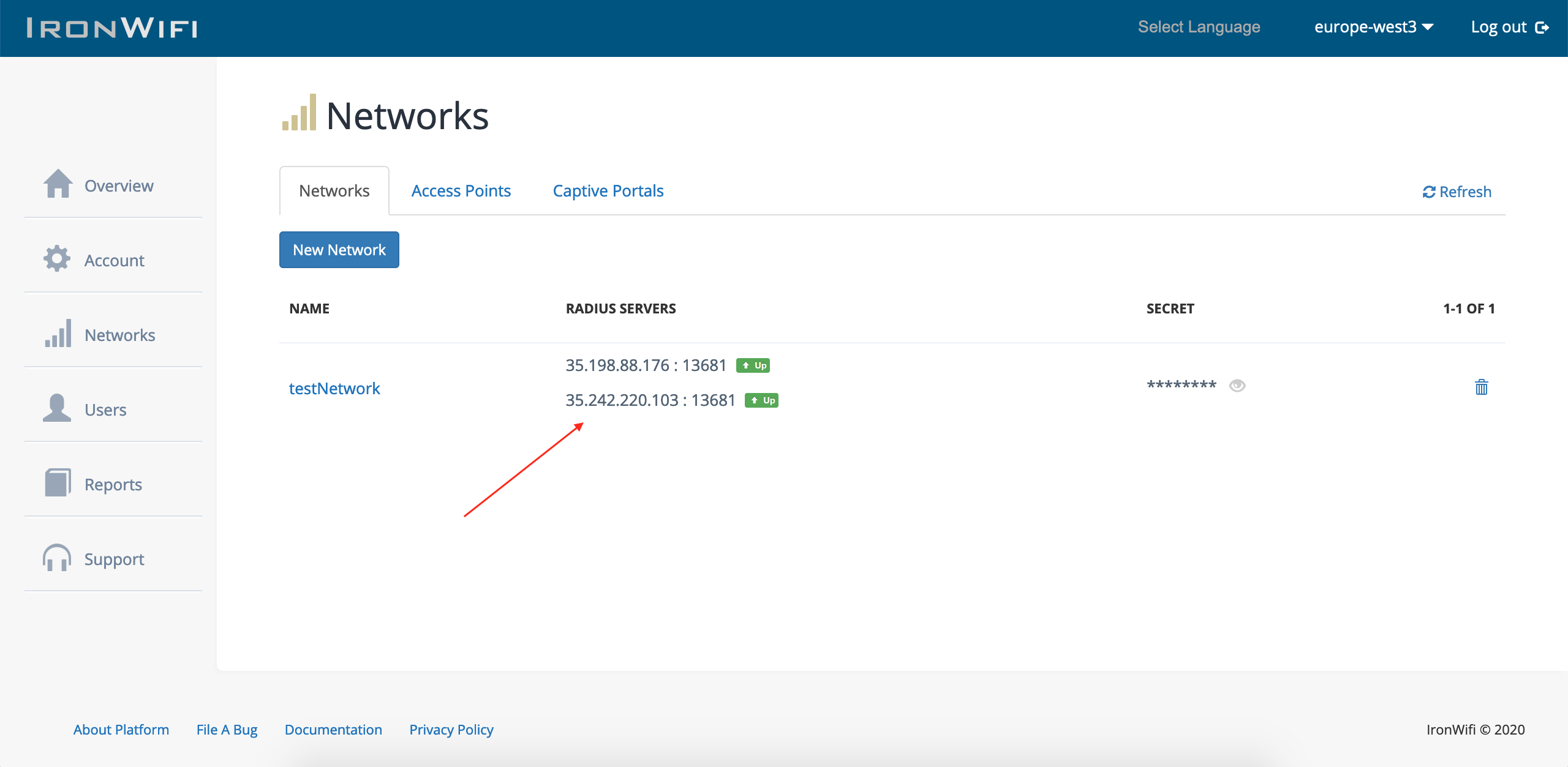
- In the IronWiFi Console, navigate to Networks
- Note the RADIUS server IP addresses, port, and shared secret
Step 4: Get Authentication Test URL
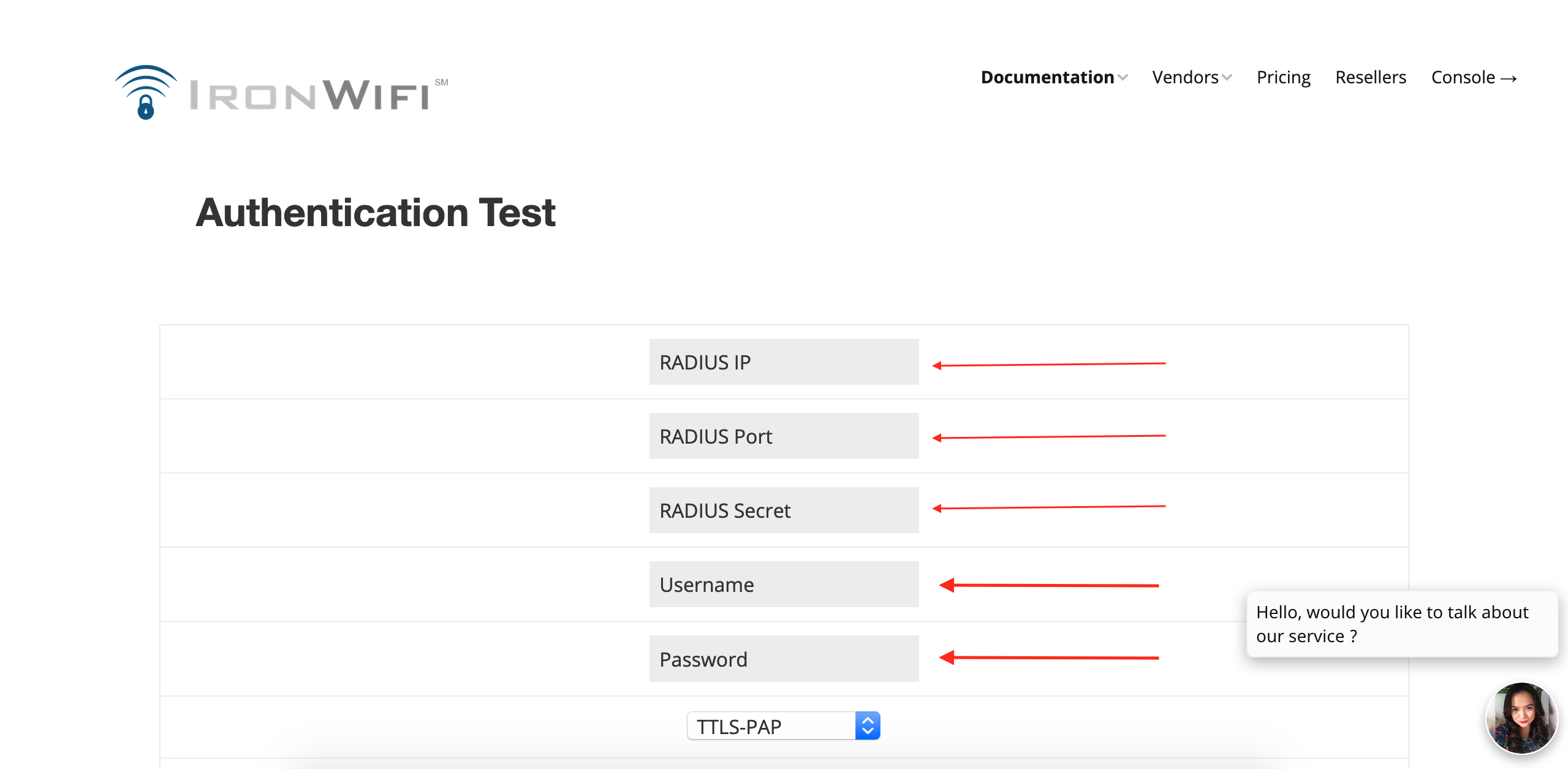
- Navigate to ironwifi.com/authentication-testing-tool
- Enter your RADIUS server details:
- IP address (from Network settings)
- Port (customer authentication port)
- Shared secret
- Authentication method (e.g., PAP)
- Test username
- Test password
- Click Submit query
- Verify the result shows
Access-Accept
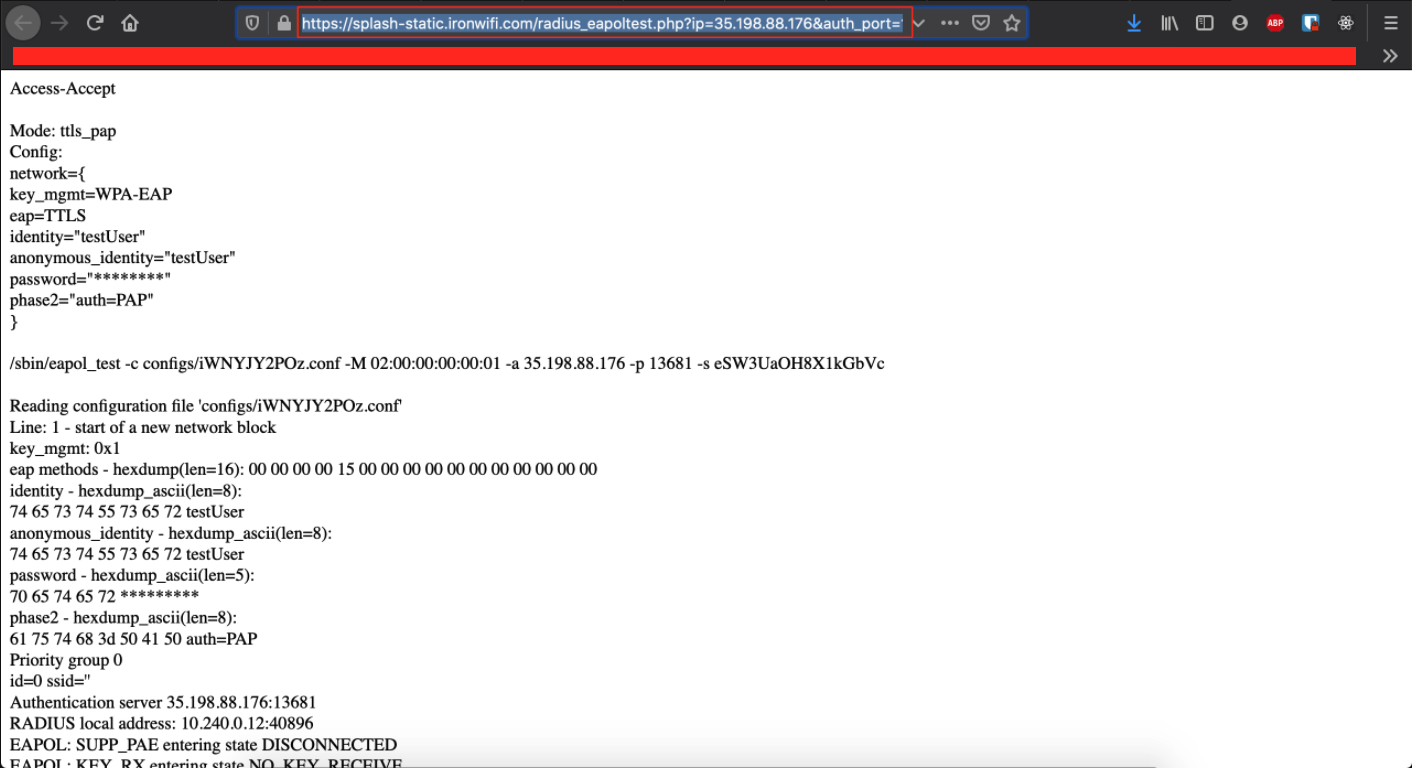
- Copy the resulting URL with parameters
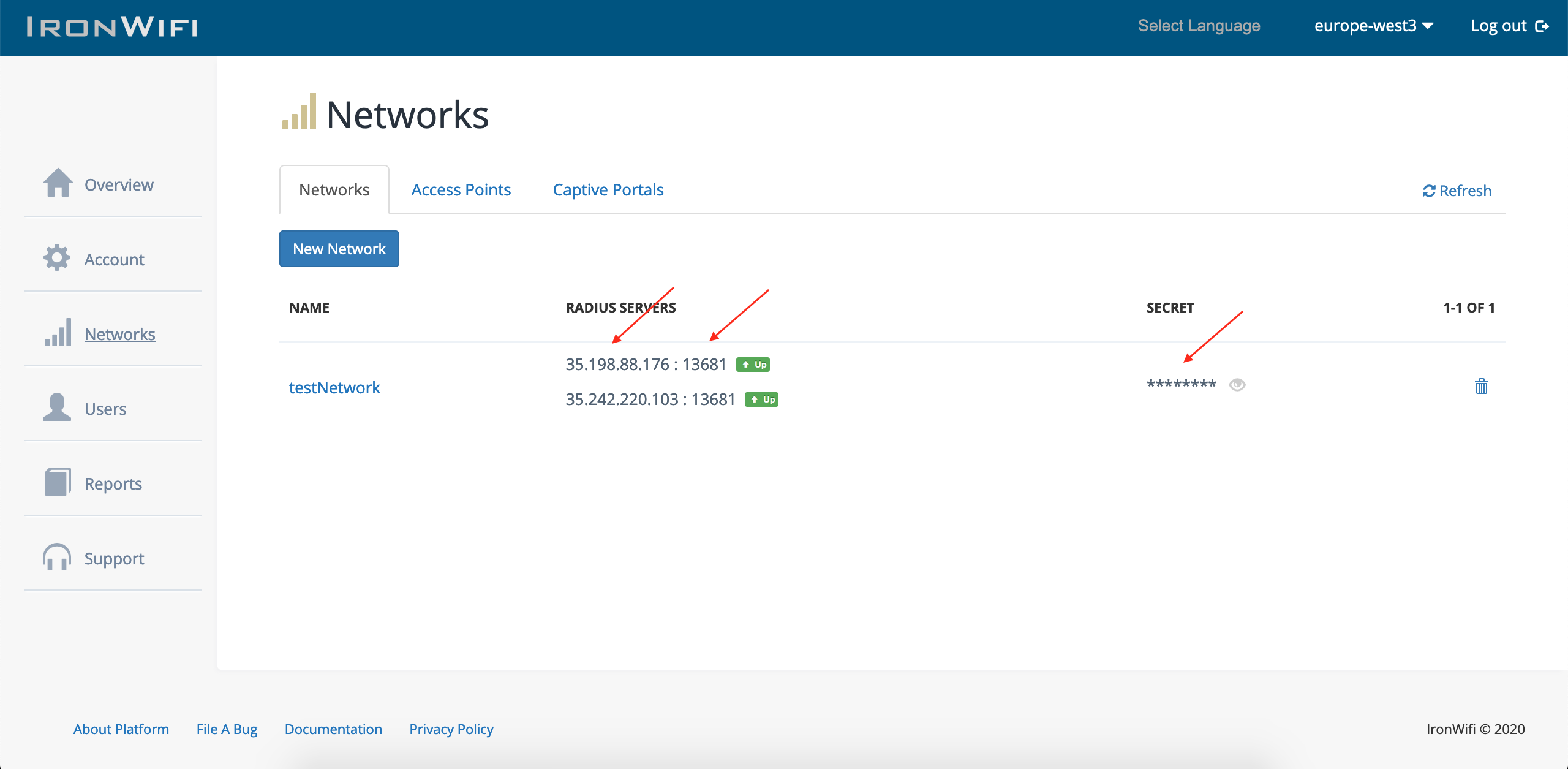
Step 5: Note RADIUS Server IPs and Secret
From your IronWiFi Networks page, note the RADIUS server IP addresses, ports, and shared secret for use in the monitor configuration.
Step 6: Create RADIUS Monitor
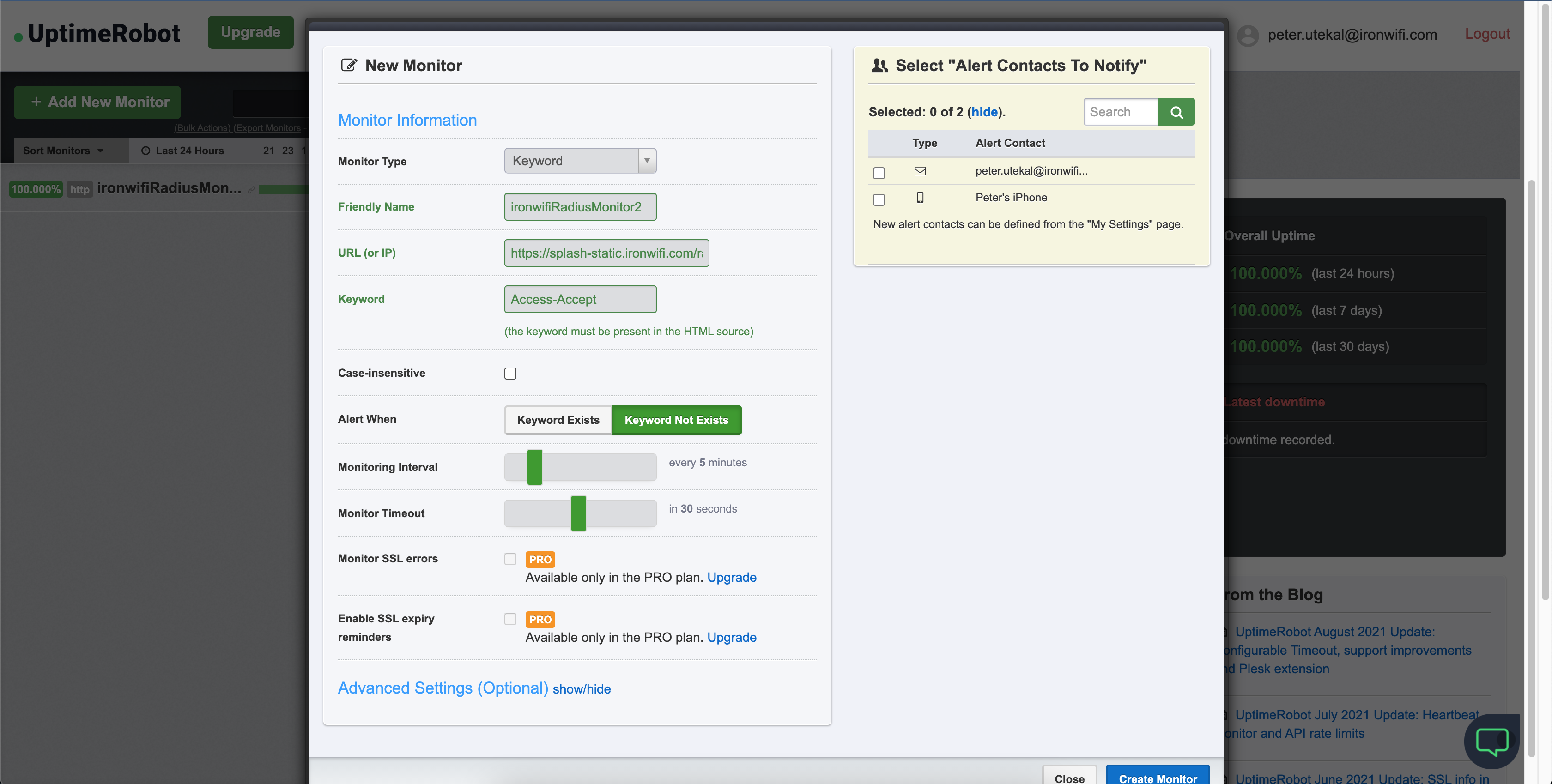
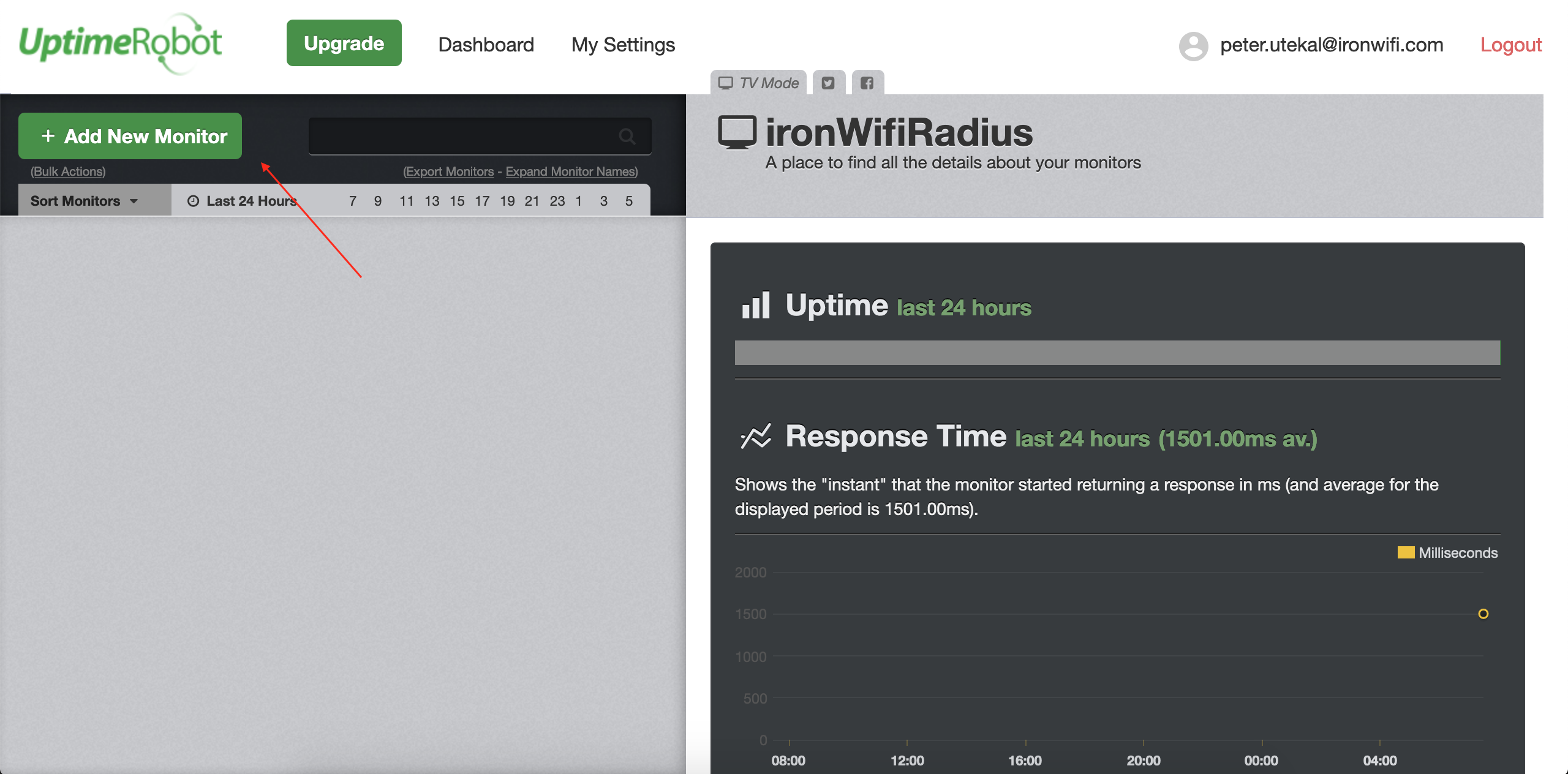
- In UptimeRobot, click Add New Monitor
- Configure:
- Monitor Type: Keyword
- Friendly Name: IronWiFi RADIUS Primary
- URL: Paste the authentication test URL
- Keyword:
Access-Accept - Alert When: Keyword does not exist
- Select alert contacts
- Click Create Monitor
- Verify the monitor appears in your dashboard
Step 7: Monitor Backup Server
Repeat Step 6 for your backup RADIUS server:
- Use the backup server IP and port
- Name it "IronWiFi RADIUS Backup"
- Same shared secret and credentials
Captive Portal Monitoring
Step 1: Create Portal Monitor
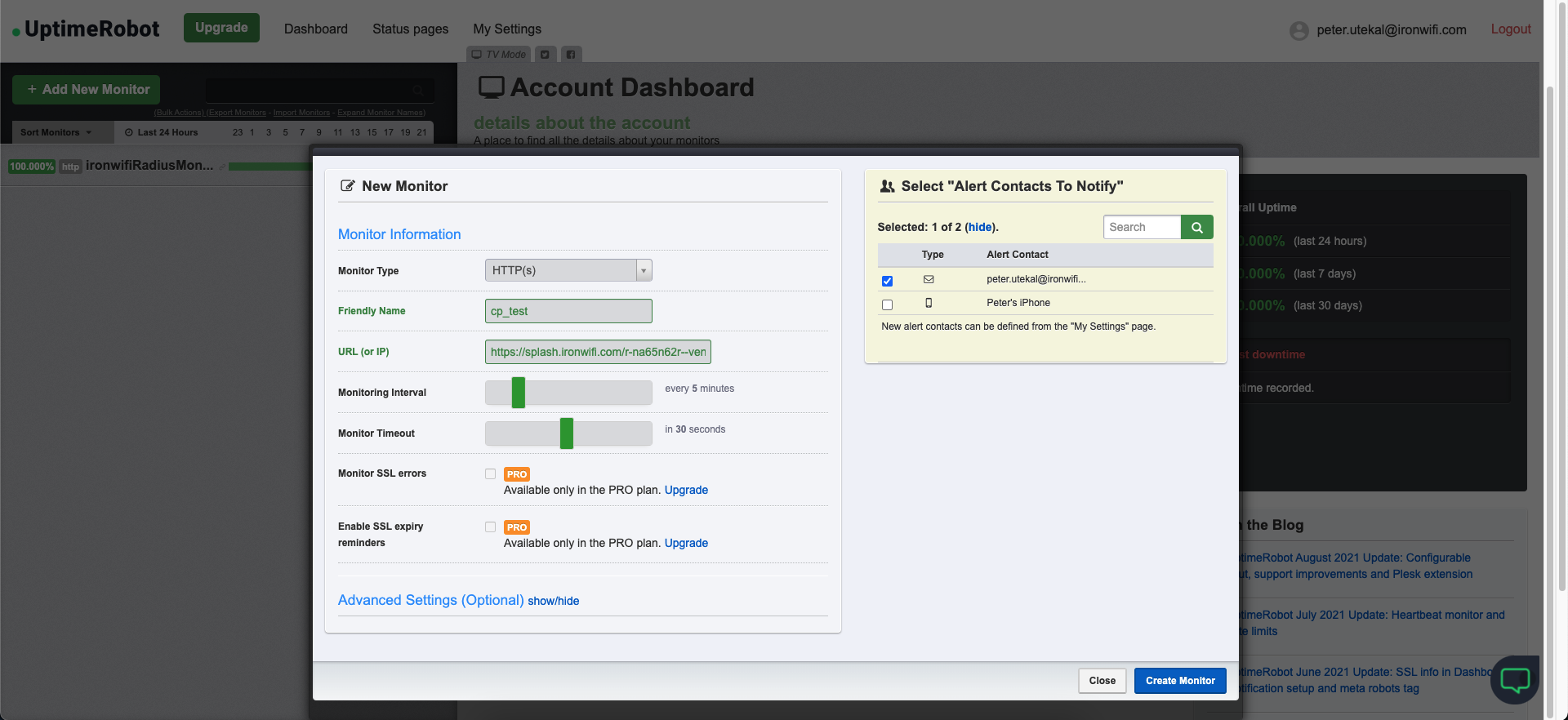
- In UptimeRobot, click Add New Monitor
- Configure:
- Monitor Type: HTTP(s)
- Friendly Name: IronWiFi Captive Portal
- URL: Your splash page URL (from Captive Portal settings)
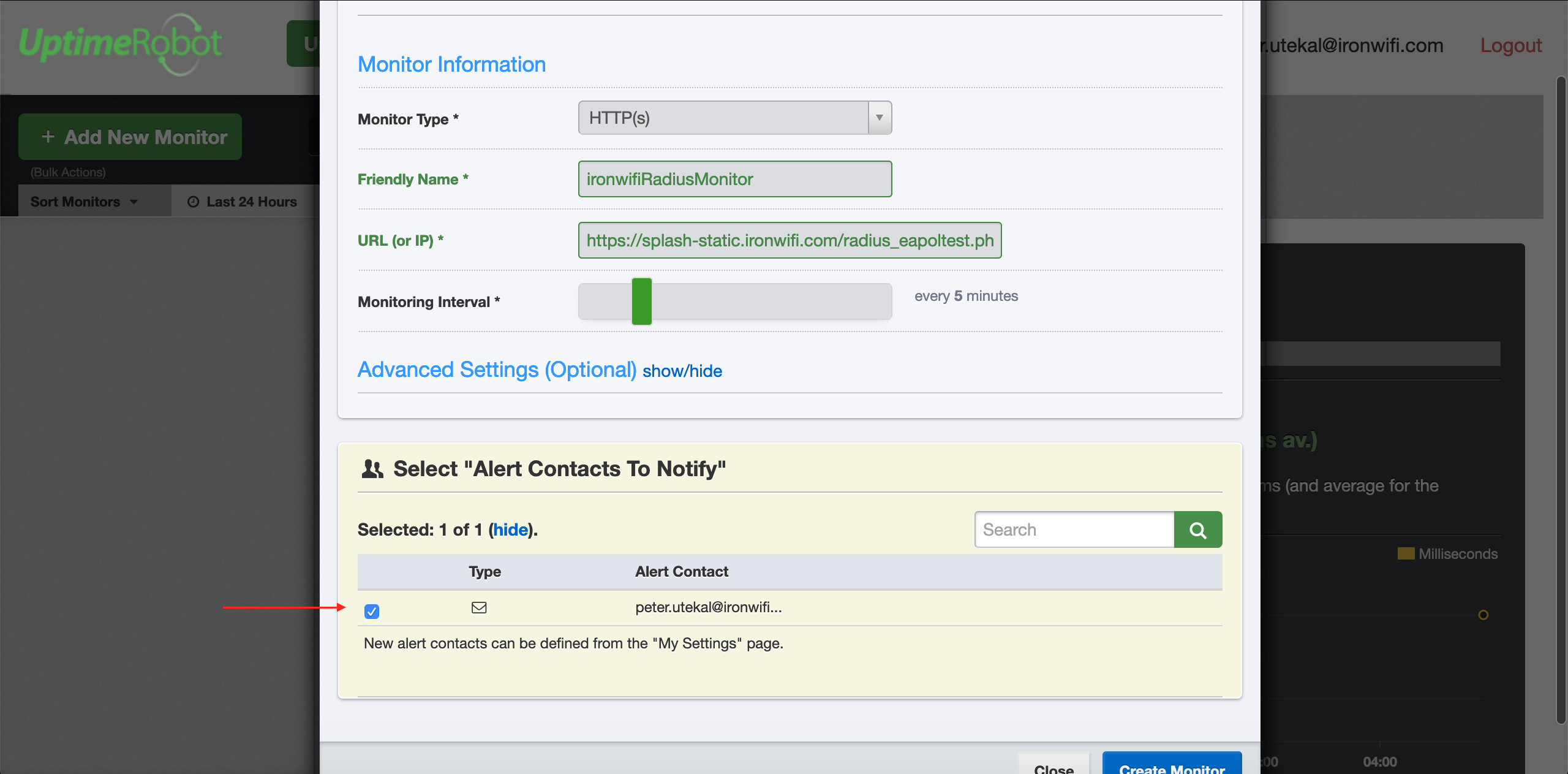
- Select alert contacts
- Click Create Monitor
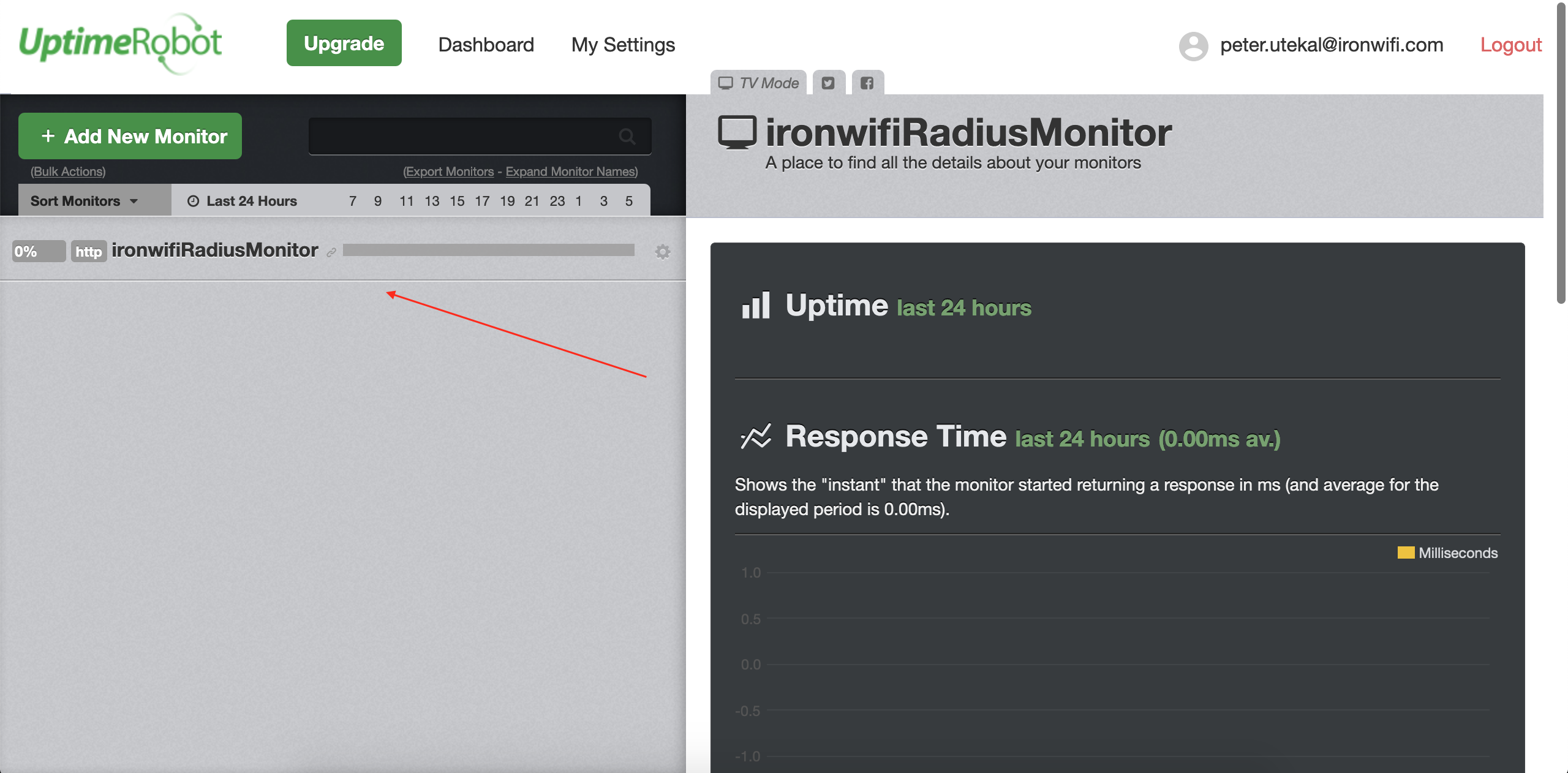
You can also create an additional monitor for the RADIUS test endpoint using the HTTP monitor type:
Alert Configuration
Email Alerts
- Navigate to My Settings
- Add email contacts
- Enable notifications for:
- Monitor down
- Monitor up
- SSL certificate expiration
SMS Alerts
- In My Settings, add phone number
- Enable SMS notifications (may require paid plan)
Slack/Webhook Integration
- Configure webhook URL
- Add to alert contacts
- Receive real-time notifications
Dashboard Overview
Your UptimeRobot dashboard shows:
- Current status of all monitors
- Uptime percentage
- Response time graphs
- Incident history
IronWiFi Status Page
In addition to your own monitoring:
- Check status.ironwifi.com for official status
- Subscribe to status updates
- View historical incidents
Monitoring Best Practices
- Monitor both servers - Primary and backup
- Set appropriate intervals - Every 5 minutes is typical
- Multiple alert methods - Email + SMS/Slack
- Test alerts - Verify you receive notifications
- Document contacts - Ensure the right people are notified
Troubleshooting
Monitor Always Down
- Verify test user credentials
- Check RADIUS server IP and port
- Confirm shared secret
- Test manually at authentication testing tool page
False Alerts
- Check monitoring interval
- Verify network connectivity
- Review timeout settings
- Consider redundant monitors
No Alerts Received
- Verify contact information
- Check spam/junk folders
- Test notification method
- Review alert settings
Related Topics
Was this page helpful?