Testing Azure Connector
-
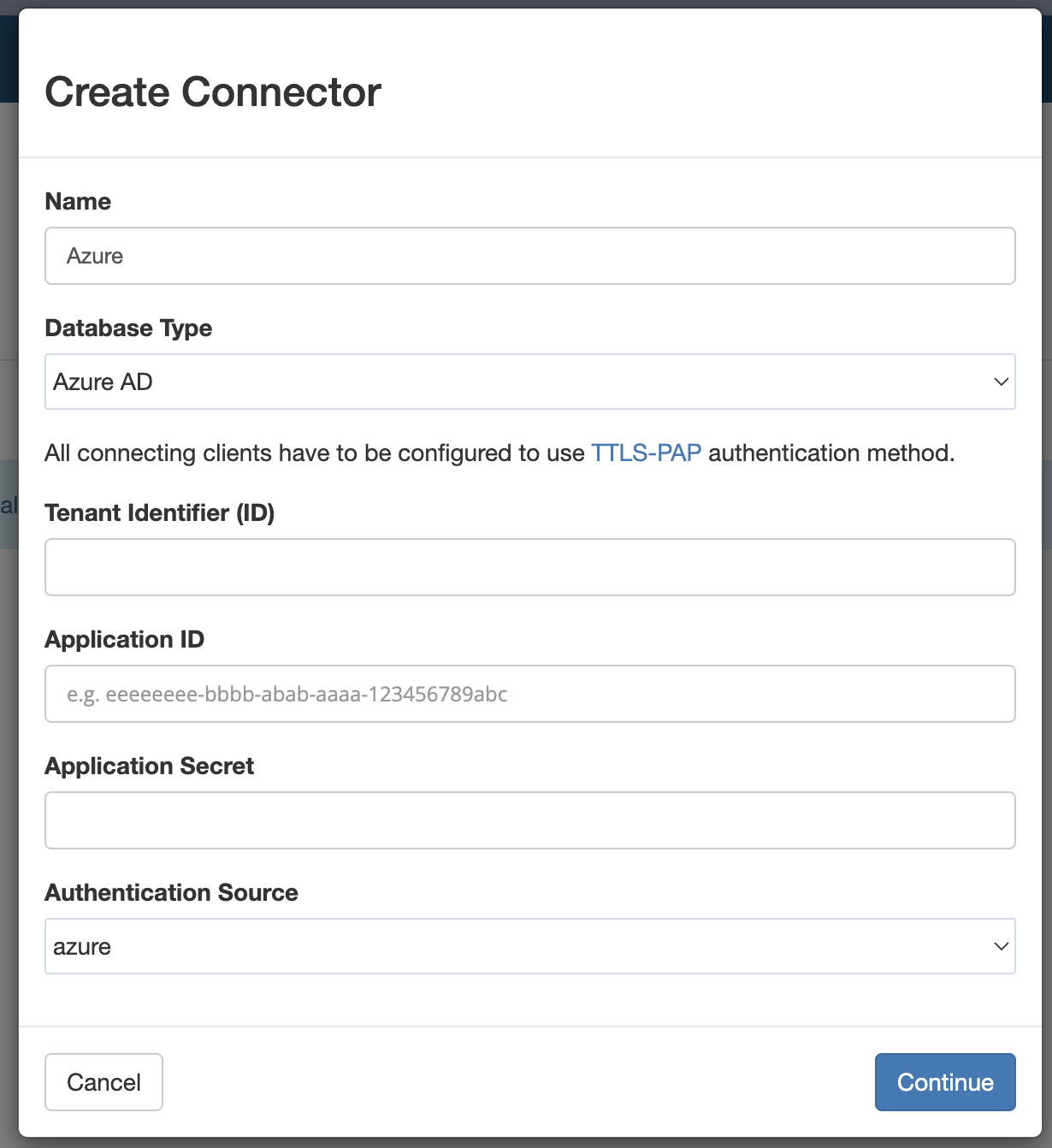
Go to Users -> Connectors -> New Connector Select Azure AD as Database Type
-
Enter values for Tenant Identifier (ID), Application ID and Application Secret that are provided from Azure.
-
Select Authentication Source as "azure".
-
Click Continue
-
It should redirect you to Azure website to login.
-
Once login in successful, it will redirect back, click continue again.
-
The connector should now be created and status will be set to "pending import".
-
Connector status should move to "processing" and "active", or "failed" if there was an error.
-
Once connector is set to "active", do the following steps:
-
Go to Users, newly created users should be visible. Click on a user
-
Verify that attributes and groups are correctly assigned.
- Go to Groups, newly created groups should be visible.
- Number of users in each group should match the ones present in Azure AD.
Deleting Azure Connector
-
Go to Users -> Connectors
-
Select a connector in Options click delete
-
Type delete to confirm
Select “delete users, groups” option
-
Connector status should be “deleted” after some time
-
Go to Users. Imported users should be deleted.
-
Go to Groups. Imported groups should be deleted.
-
Repeat Step 1 and create a new Connector.
-
Repeat Deleting process. Do not select “delete users, groups” option
-
Connector status should be “deleted” after some time
-
Go to Users. Imported users should still be visible.
-
Go to Groups. Imported groups should still be visible.
