SCEP with Intune - IronWiFi PKI - Device Auth
The Simple Certificate Enrollment Protocol (SCEP) is a protocol that allows devices to easily enroll for a certificate by using a URL and a shared secret to communicate with a PKI.
This is a guide for setting up SCEP with IronWiFi's multi-tiered HSM based Certificate Authority and Microsoft Intune to provision Windows OS based devices, using device profile.
What You Need
- owner_id - a unique identifier of your IronWiFi account that can be found in the URL when you're logged in (e.g., or
abcdefg12345678)domain-abcd1234 - region - region where your data resides and authentication requests are processed (,
us-east1,console, etc.)asia-northeast1 - SCEP Server URL - build the URL in this format:
https://REGION.ironwifi.com/api/OWNER_ID/certificates - IronWiFi Root CA Certificate - certificate of the IronWiFi Root Certificate Authority
- IronWiFi SCEP CA Certificate - certificate of the IronWiFi SCEP Intermediate Certificate Authority signing the CSR requests
- Trusted IronWiFi RADIUS Server Certificate - server certificate signed by a trusted CA
Your users must exist in the IronWiFi console or the SCEP connector's User Auto-Creation option must be enabled for this to work. We are mapping the device serial number to the username in console.
Step 1: Create SCEP Connector in IronWifi
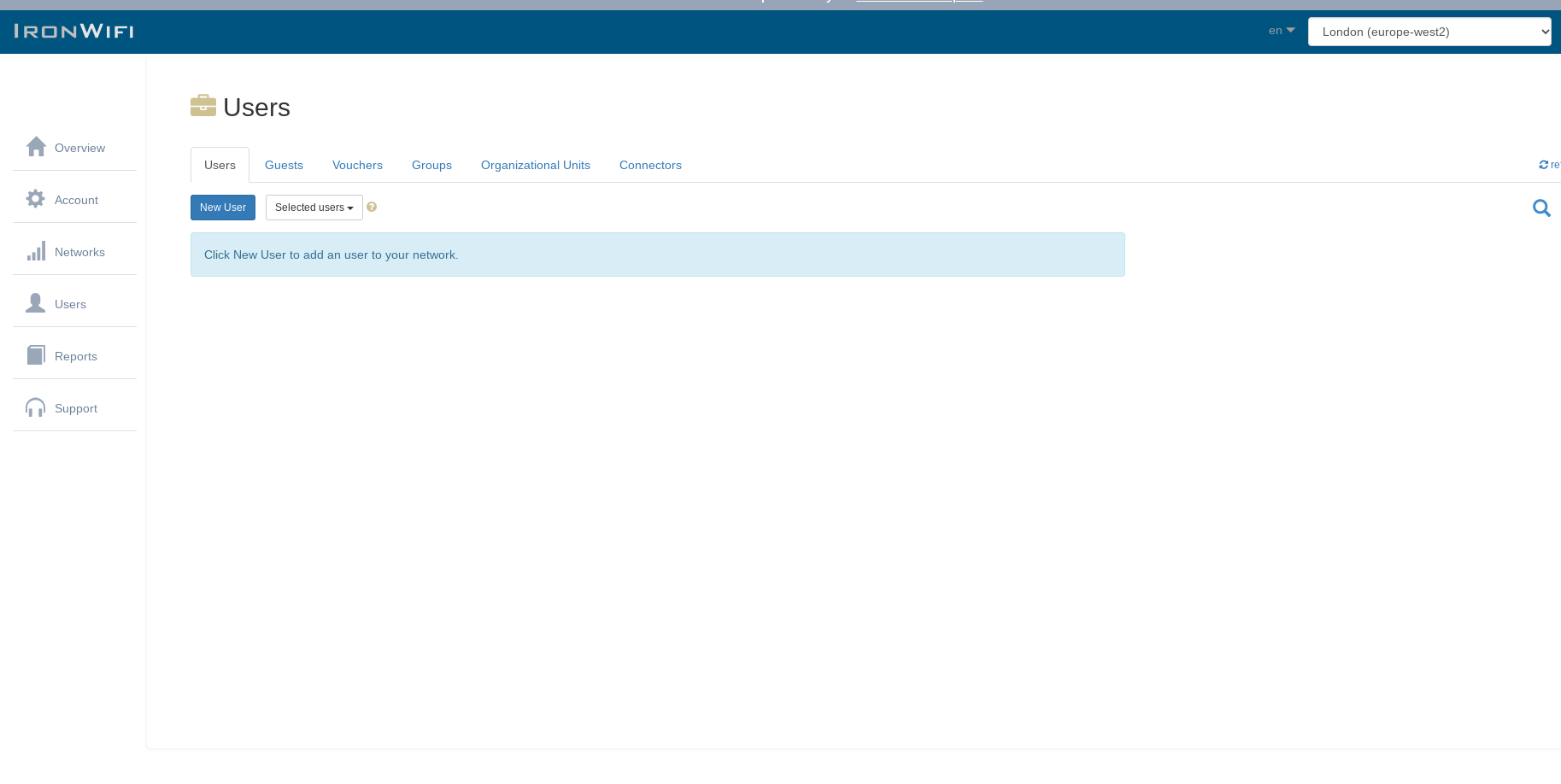
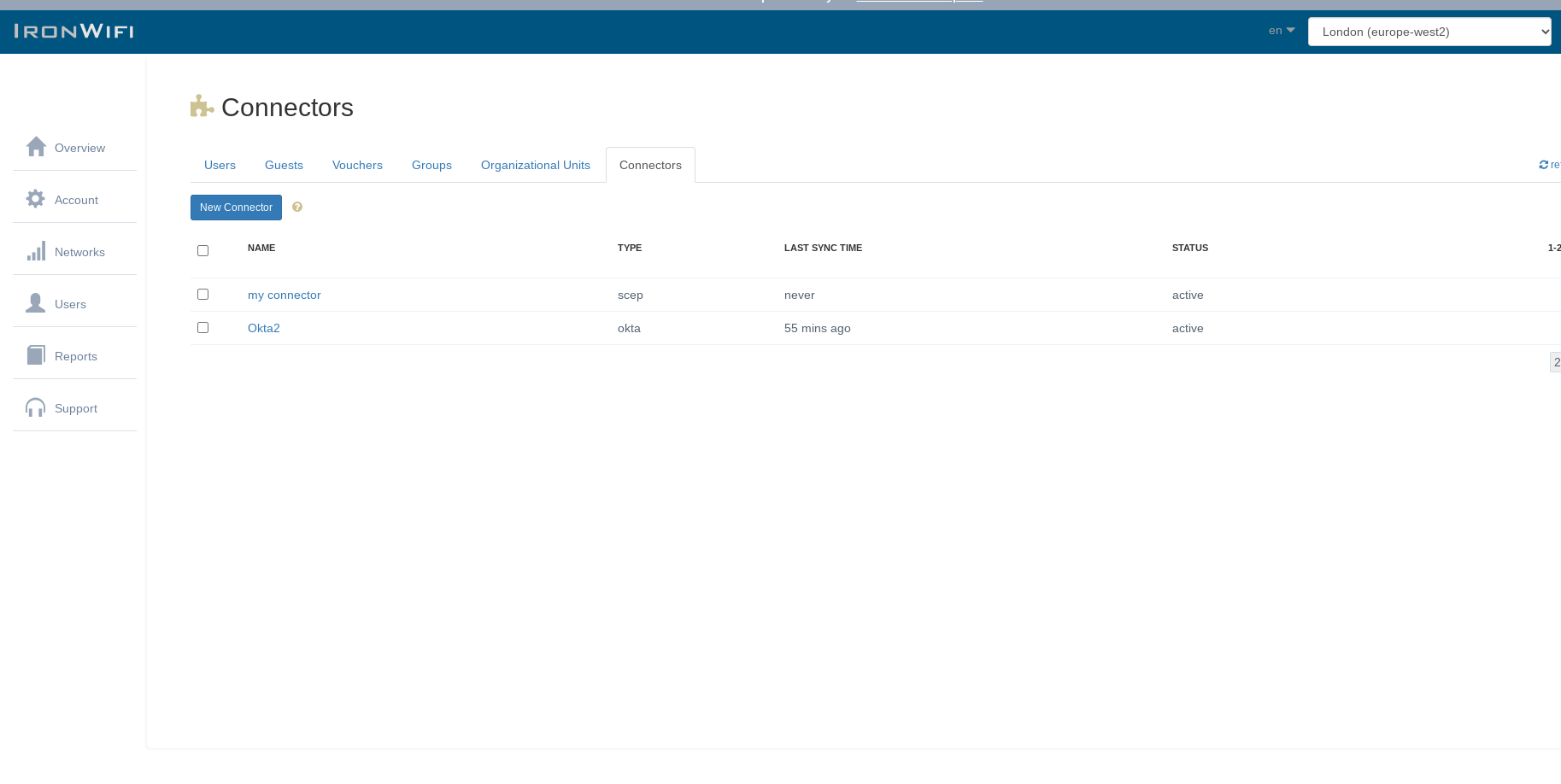
Sign in to the IronWiFi Management Console and create a SCEP connector:
- Click on Users > Connectors > New Connector
Step 2: Sign in to Intune
Sign in to the Microsoft Intune management console.
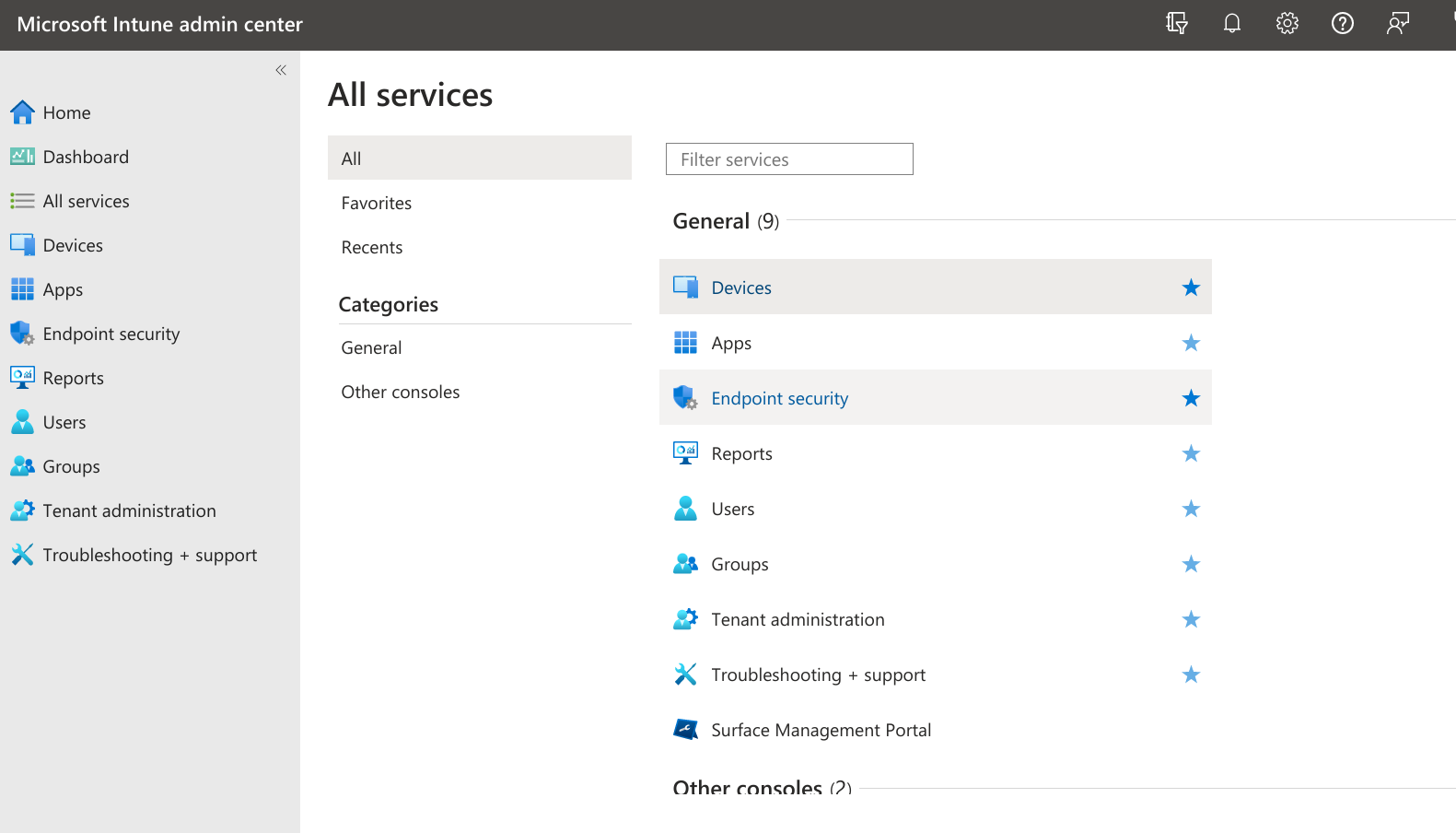
Step 3: Navigate to Configuration Profiles
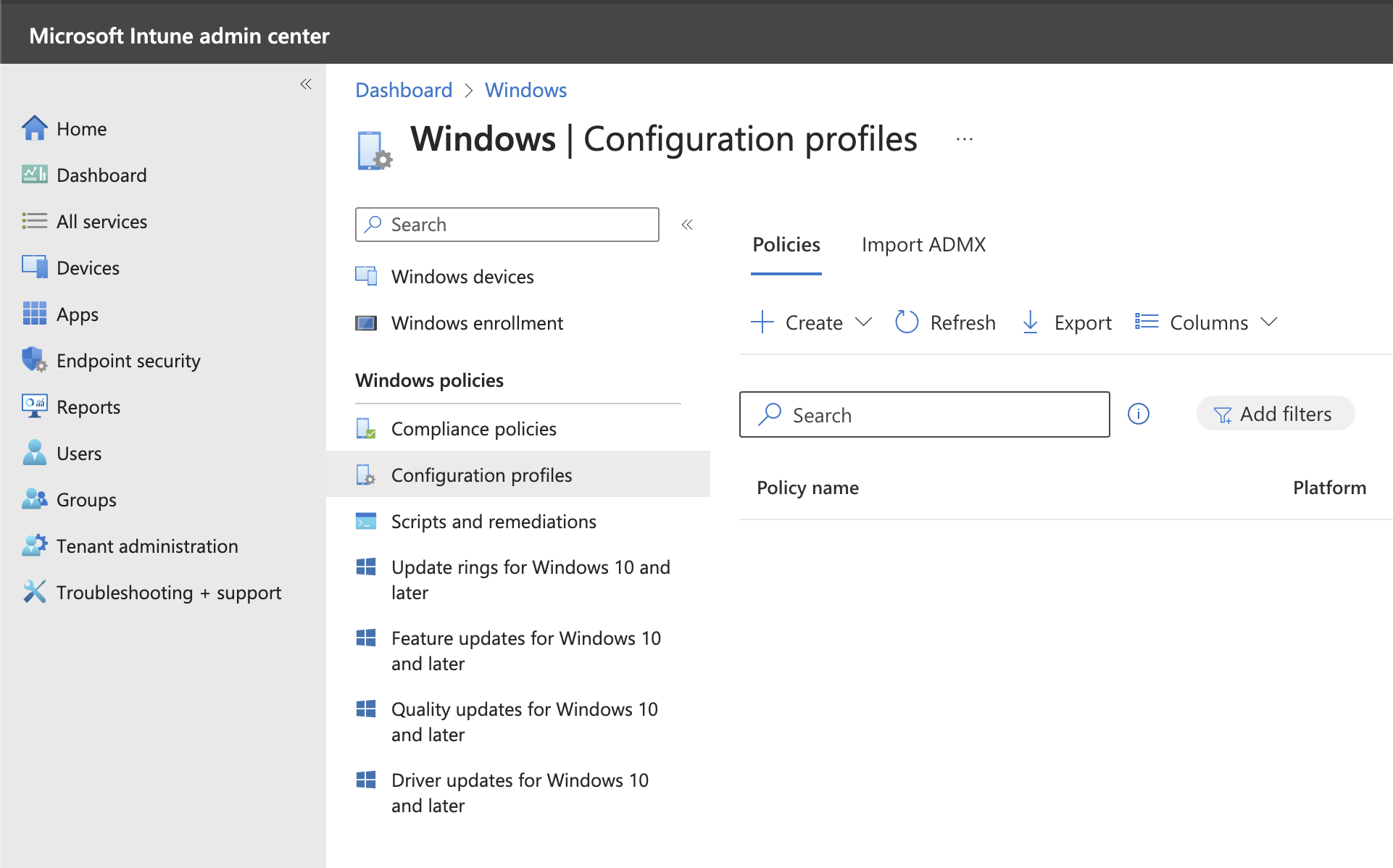
Navigate to Devices > Windows > Configuration Profiles.
Step 4: Create Root CA Trusted Certificate Profile
Click Create > New Policy and choose:
- Platform: Windows 10 and later
- Profile type: Templates
- Search for Trusted Certificate template
Step 5: Configure Root CA Certificate
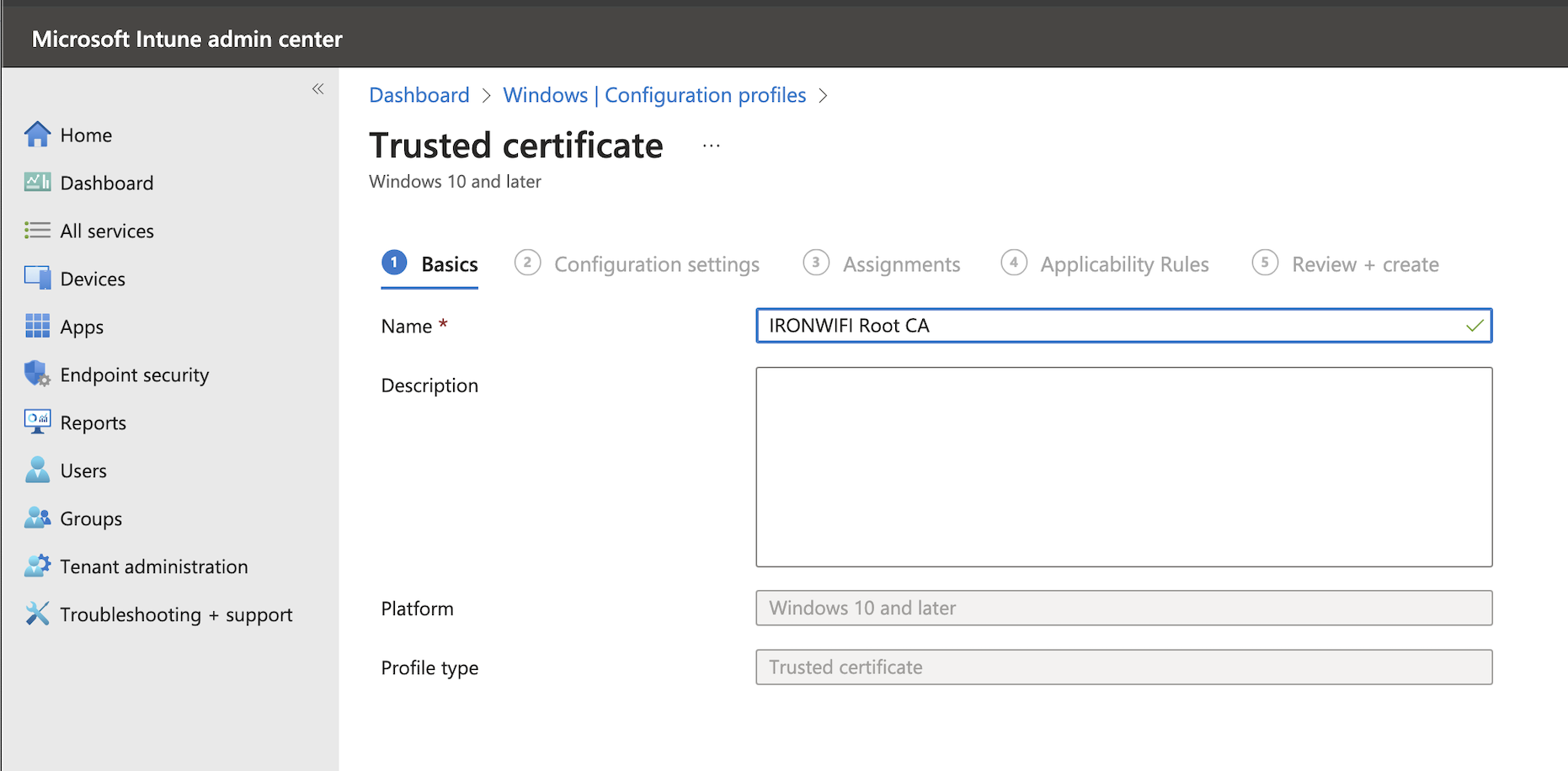
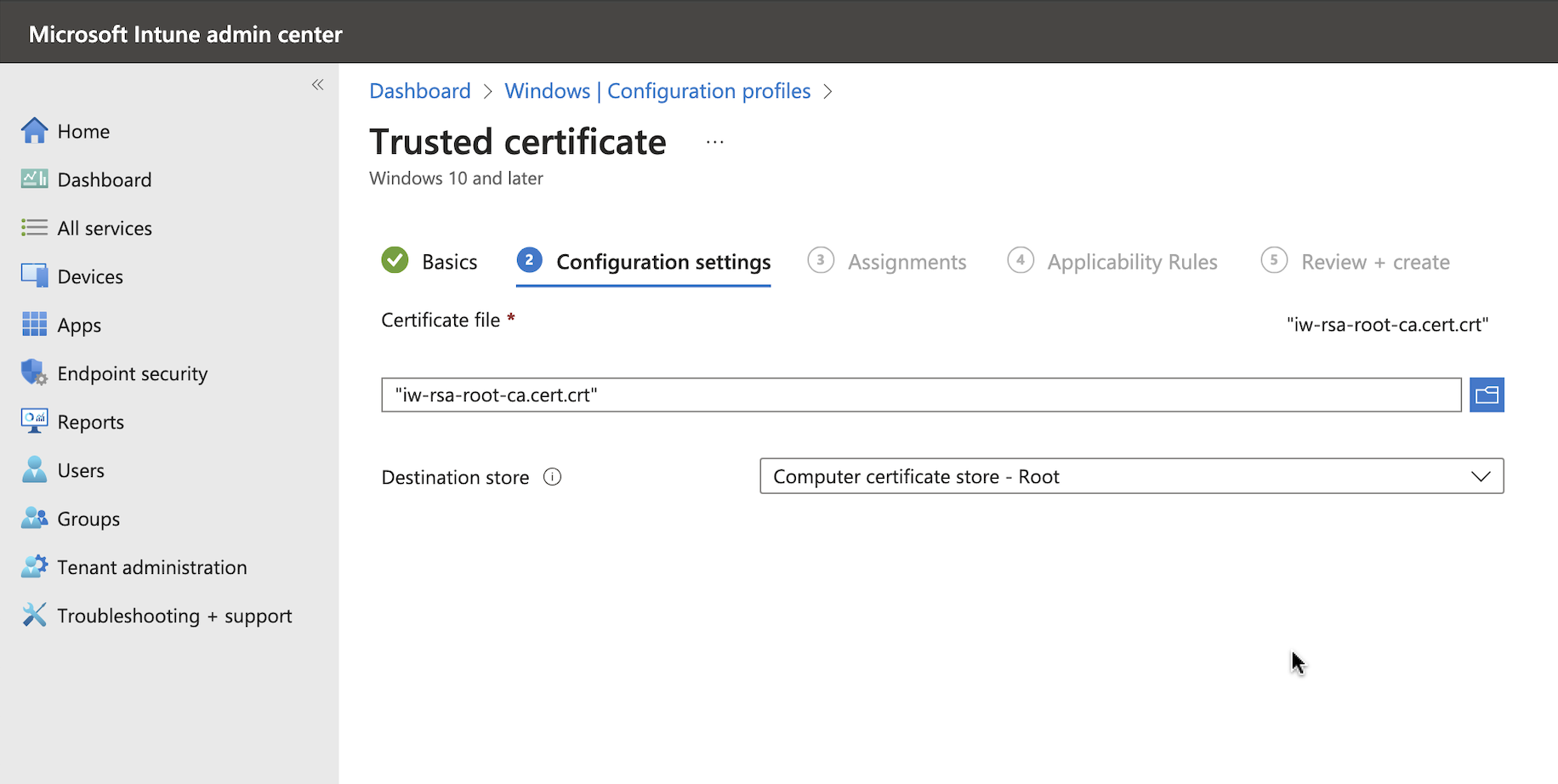
Add the certificate with the following configuration settings:
- Name: IRONWIFI Root CA Certificate
- Certificate file: (downloaded from IronWiFi console)
iw-rsa-root-ca.cert.crt - Destination store: Computer certificate store - Root
Step 6: Assign the Profile
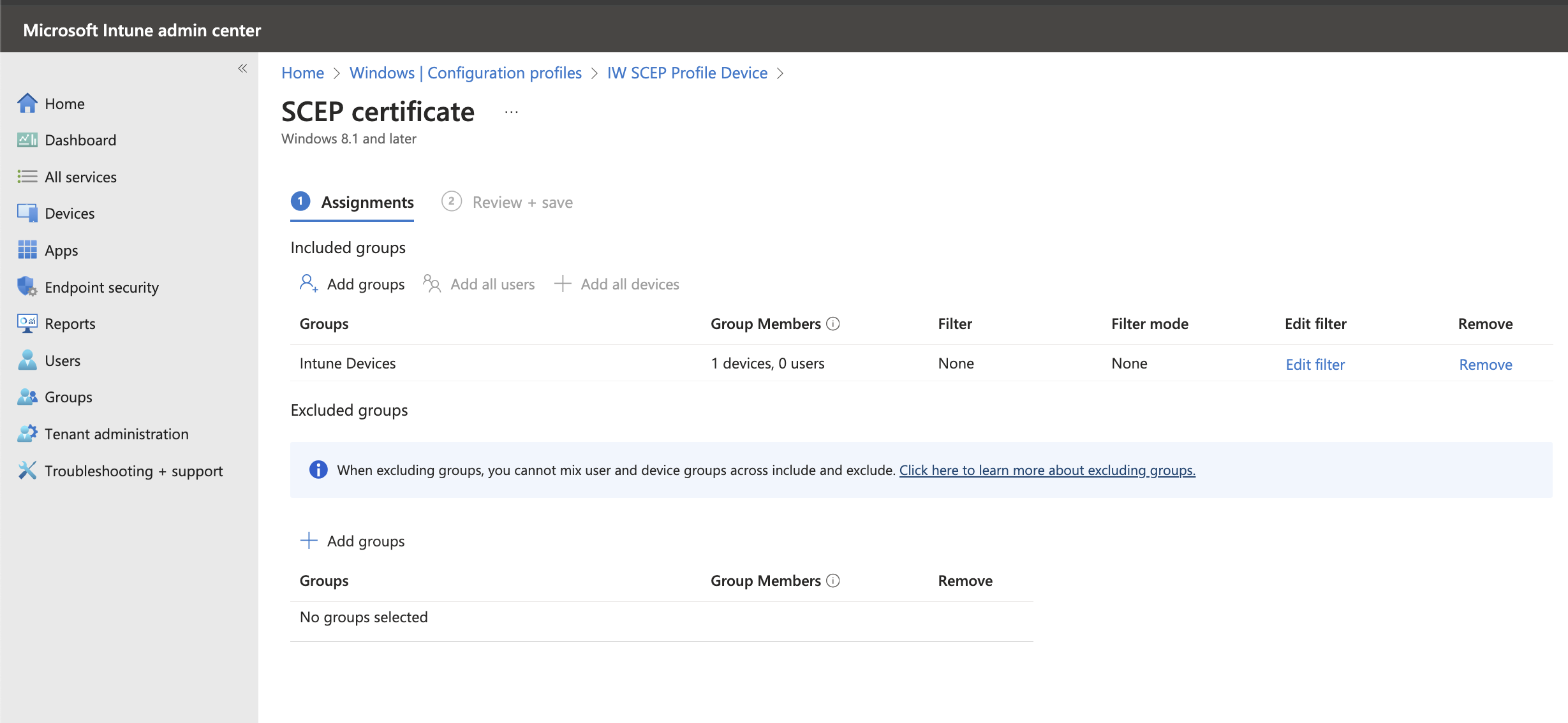
Select correct Assignments and Applicability Rules.
Make sure that you are using DEVICE based assignments for all profiles. If you mix them (e.g., assign certificates to users and SCEP profile to devices), the SCEP profile will not deploy and will be stuck in pending.
Step 7: Review and Create
Review and create the profile.
Step 8: Create SCEP Issuing CA Certificate Profile
Create another Configuration Profile for Trusted certificate with the following settings:
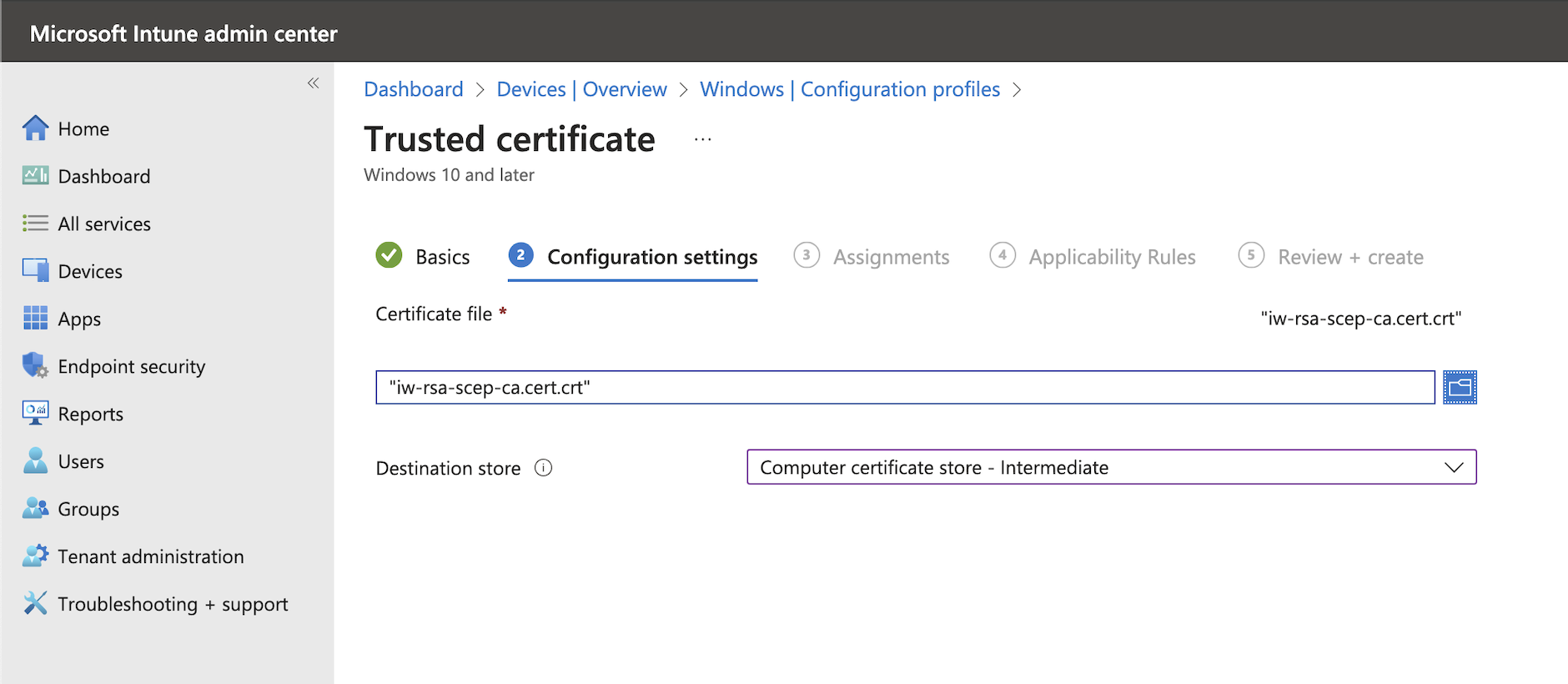
- Name: IRONWIFI SCEP Issuing CA Certificate
- Certificate file: (downloaded from IronWiFi console)
iw-rsa-scep-ca.cert.crt - Destination store: Computer certificate store - Intermediate
Select correct Assignments and Applicability Rules and review and create the profile as before.
Step 9: Create Trusted RADIUS Certificate Profile
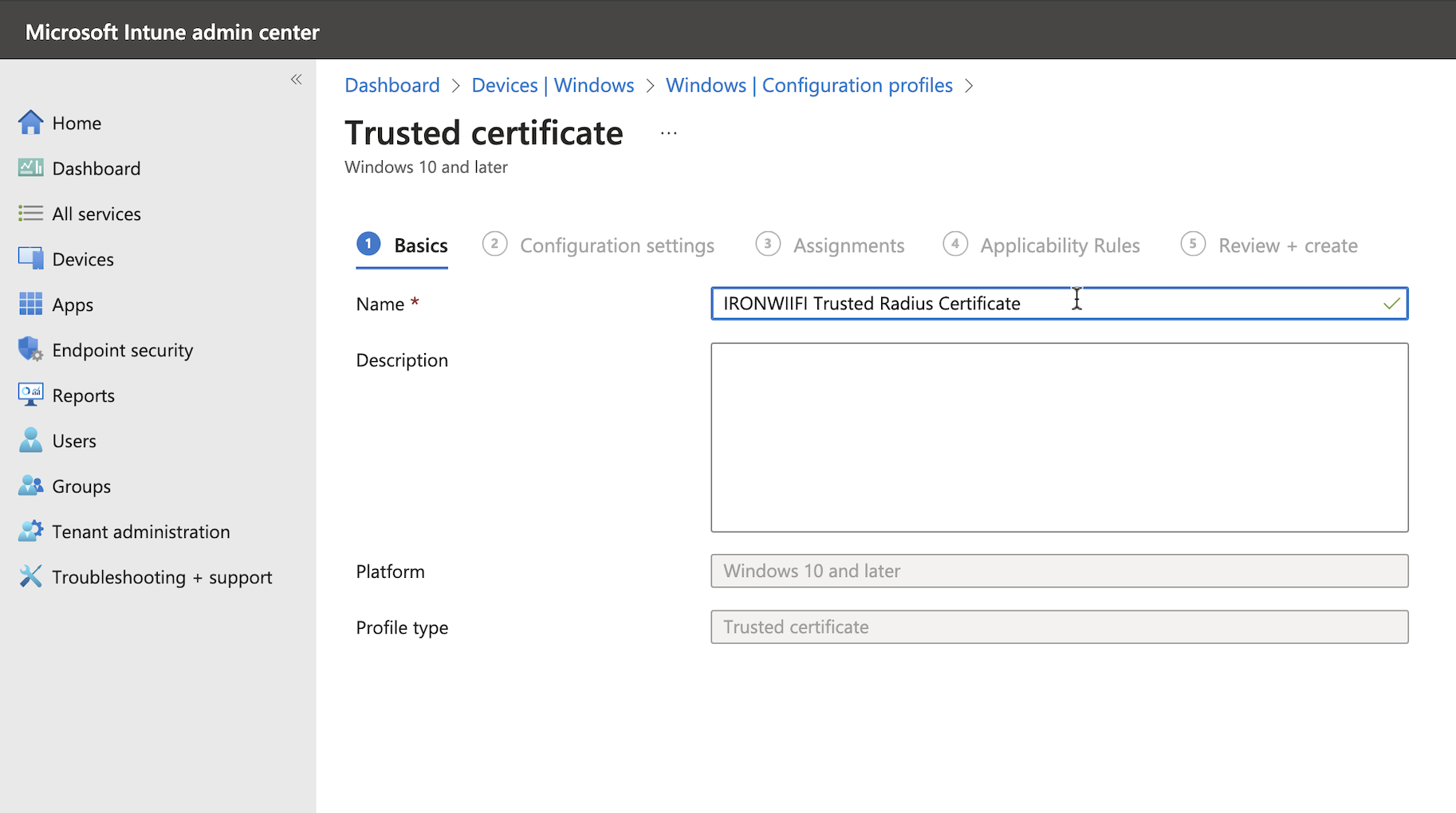
Create another Configuration Profile for Trusted certificate with the following settings:
- Name: IRONWIFI Trusted Radius Certificate
- Certificate file: (downloaded from IronWiFi console)
ironwifi-radius-trusted.crt - Destination store: Computer certificate store - Root
Select correct Assignments and Applicability Rules and review and create the profile.
Step 10: Create SCEP Certificate Profile
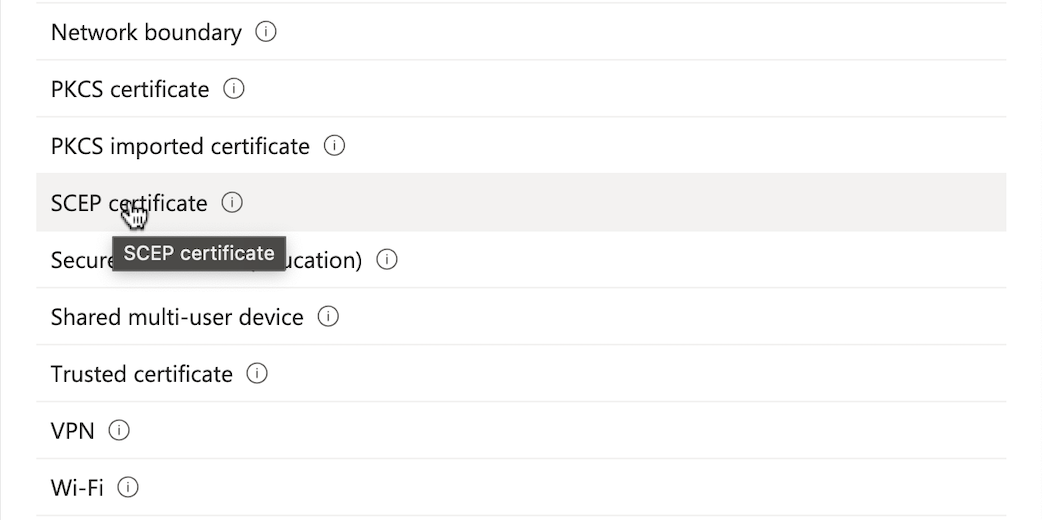
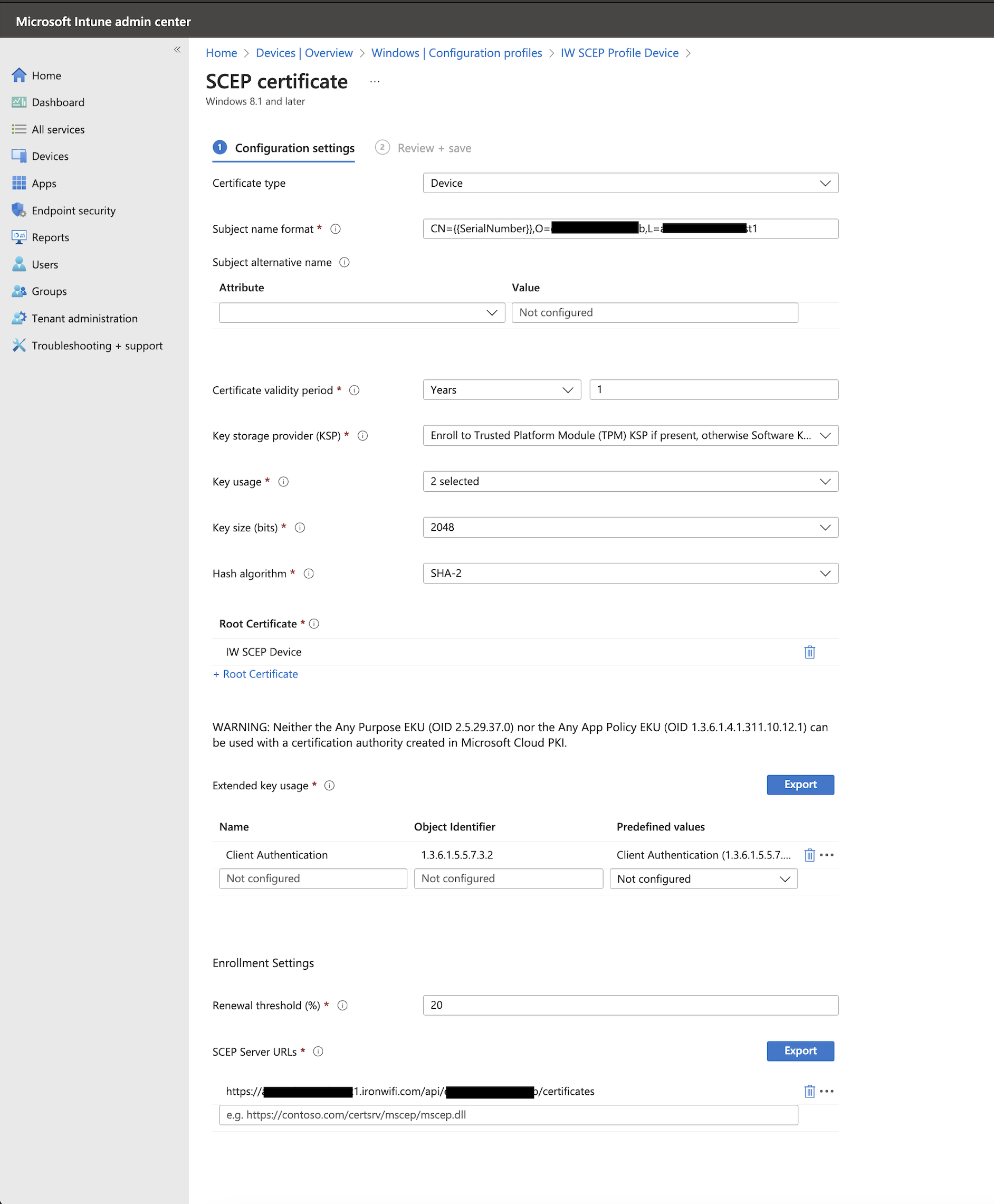
Create a Configuration Profile, this time selecting SCEP certificate template.
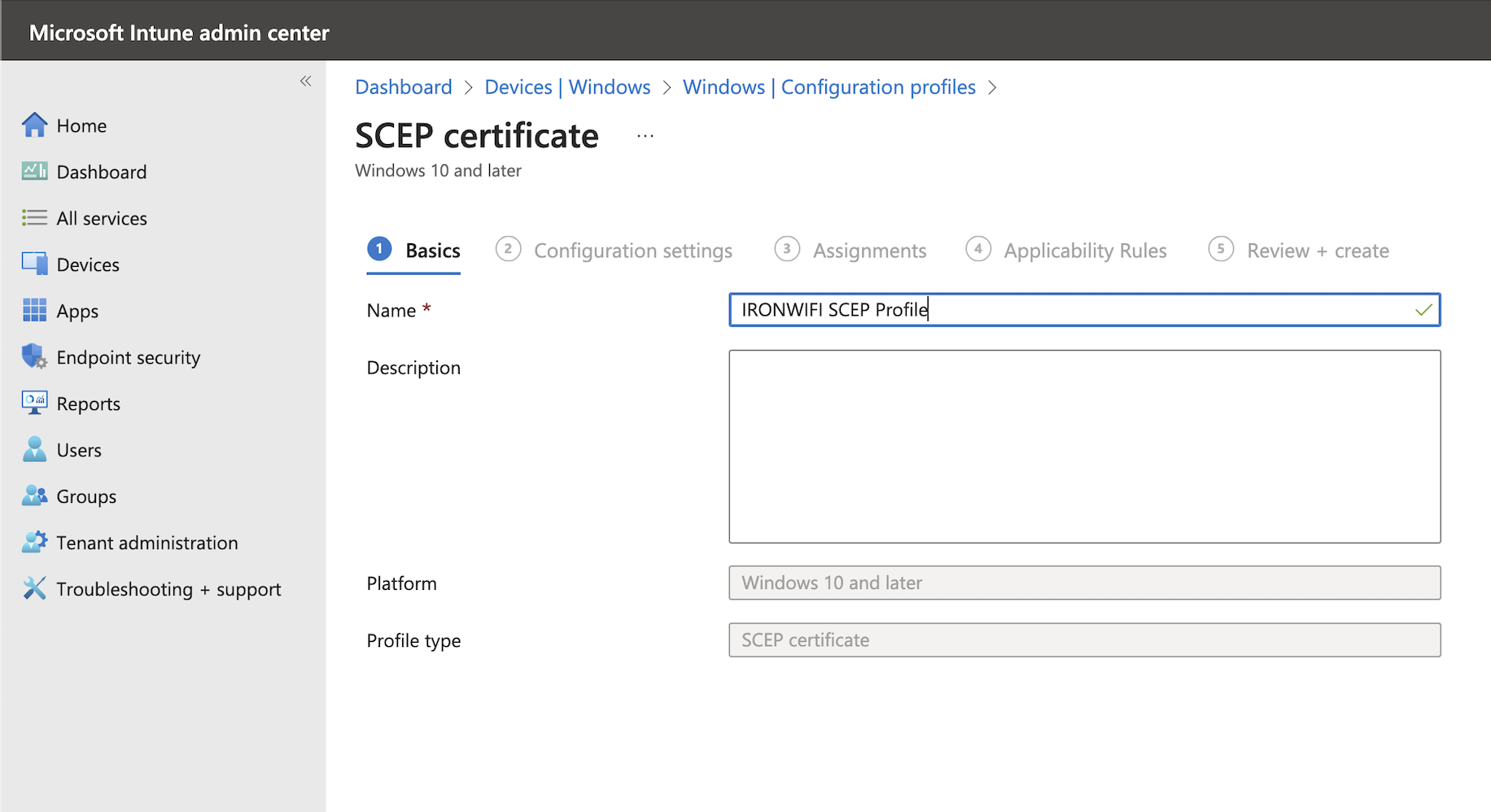
Step 11: Configure SCEP Certificate Settings
Use the following configuration settings:
| Setting | Value |
|---|---|
| Certificate type | Device |
| Subject name format | |
| Certificate validity period | Years 1 (or your desired validity period) |
| Key storage provider (KSP) | Enroll to Trusted Platform Module (TPM) if present, otherwise Software KSP |
| Key usage | Key encipherment, Digital signature |
| Key size (bits) | 2048 |
| Hash algorithm | SHA-2 |
| Root Certificate | Select IRONWIFI SCEP Issuing CA Certificate (created in Step 8) |
| Extended key usage | Select "Client Authentication" from the Predefined Values dropdown |
| Renewal threshold (%) | 20 |
| SCEP Server URL | |
Replace
OWNER_ID
REGION
Select correct Assignments and Applicability Rules and review and create the profile.
Step 12: Create WiFi Profile
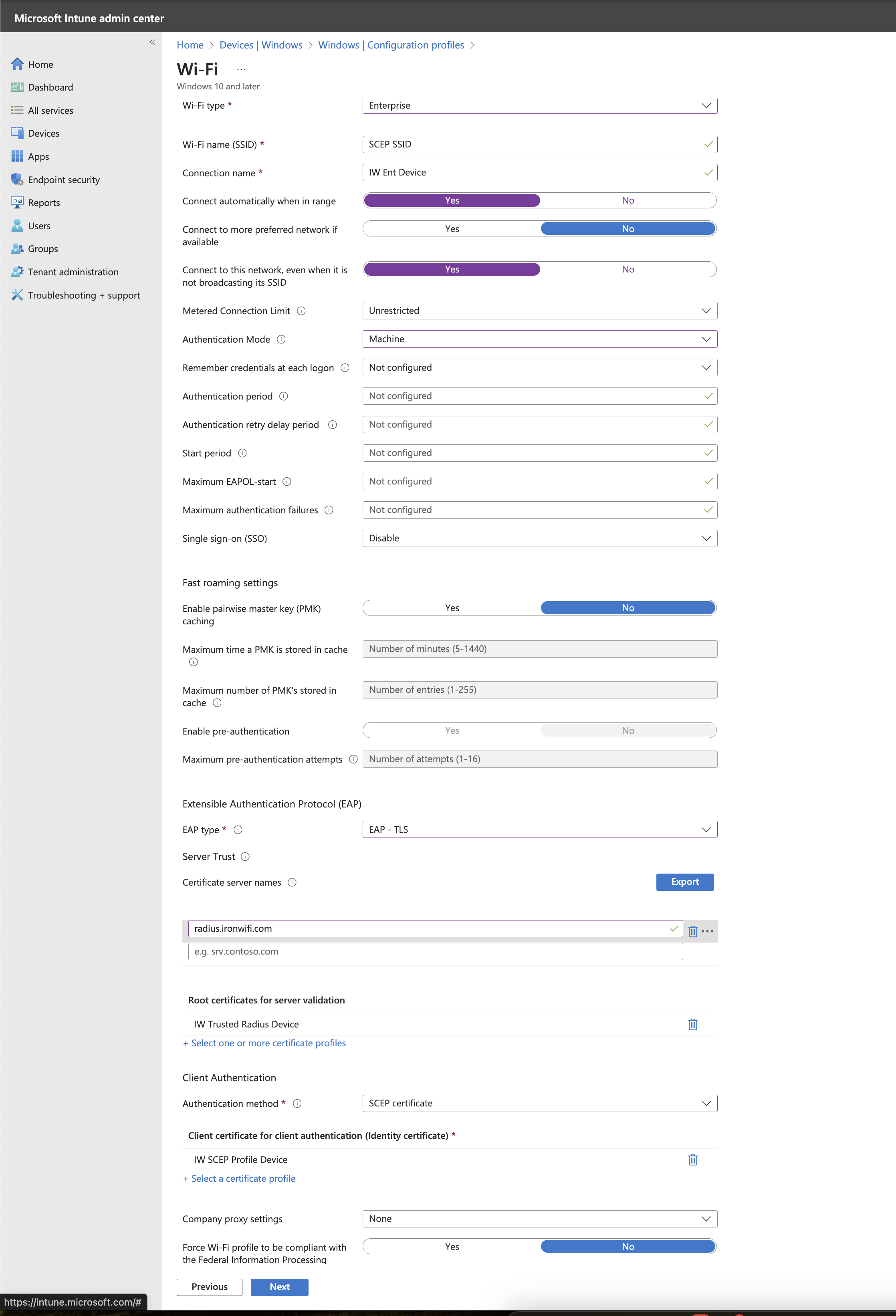
Create a Configuration Profile, this time selecting Wi-Fi template. Select type Enterprise.
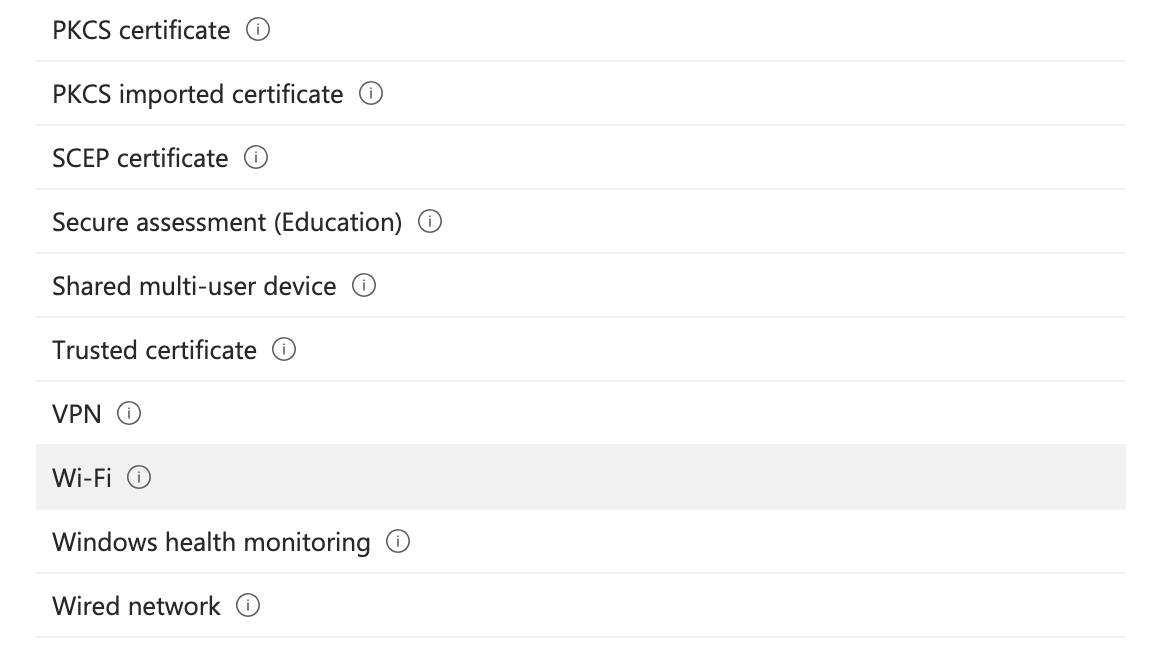
Step 13: Configure WiFi Profile Settings
Use the following settings:
| Setting | Value |
|---|---|
| Wi-Fi name | Your SSID |
| Connection name | Your connection name |
| Connect automatically when in range | Yes |
| Connect to more preferred network if available | No |
| Connect to this network, even when not broadcasting | Yes |
| Metered Connection Limit | Unrestricted |
| Authentication Mode | Machine |
| Single sign-on (SSO) | Disable |
| EAP type | EAP-TLS |
| Certificate server names | |
| Root certificate for server validation | IRONWIFI Trusted Radius Certificate (created in Step 9) |
| Client Authentication - Authentication method | SCEP certificate |
| Client certificate (Identity certificate) | Select SCEP certificate profile (created in Step 10) |
| Company proxy settings | None |
Step 14: Verify Deployment
After assigning all profiles, verify that they deploy successfully:
- Check Devices > Configuration profiles for deployment status
- Verify certificates are installed on test devices
- Confirm WiFi connection is established
Troubleshooting
SCEP Profile Stuck in Pending
- Ensure all profiles use DEVICE based assignments (not user-based)
- Verify the SCEP Server URL is correctly formatted
- Check that the SCEP connector is active in IronWiFi console
Certificate Not Deploying
- Verify the Root CA and SCEP CA certificates are deployed first
- Check Intune device sync status
- Review the SCEP connector logs in IronWiFi
WiFi Not Connecting
- Verify all certificates (Root CA, SCEP CA, Trusted RADIUS, Device cert) are installed
- Check RADIUS server receives authentication requests in IronWiFi logs
- Confirm EAP-TLS settings match
Related Topics
- SCEP with Intune - User Auth - User profile variant
- SCEP & PKI Overview - General SCEP configuration
- Microsoft Intune Integration - Overview of Intune integration
- PKI Infrastructure - IronWiFi CA details
- Windows - EAP-TLS - Manual Windows EAP-TLS setup