Apple iOS - EAP-PEAP Configuration
Configure iPhone, iPad, and Mac devices to connect securely to IronWiFi WPA-Enterprise wireless networks using EAP-PEAP authentication. This guide covers manual configuration, configuration profiles, and MDM deployment for enterprise environments.
Overview
EAP-PEAP provides secure wireless authentication using a username and password. iOS devices fully support EAP-PEAP and can be configured manually or via MDM profiles.
Prerequisites
- iOS 15 or later
- Valid IronWiFi user credentials
- Wireless network configured with WPA2-Enterprise
Manual Configuration
iPhone / iPad
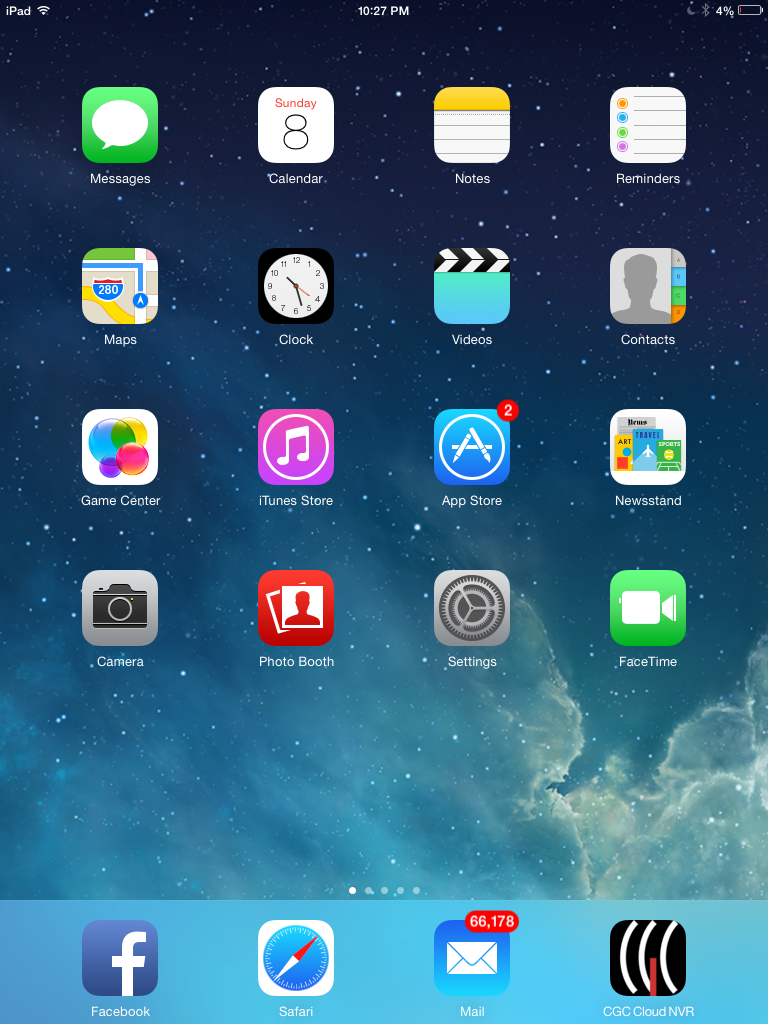
- Open Settings and tap the WiFi option
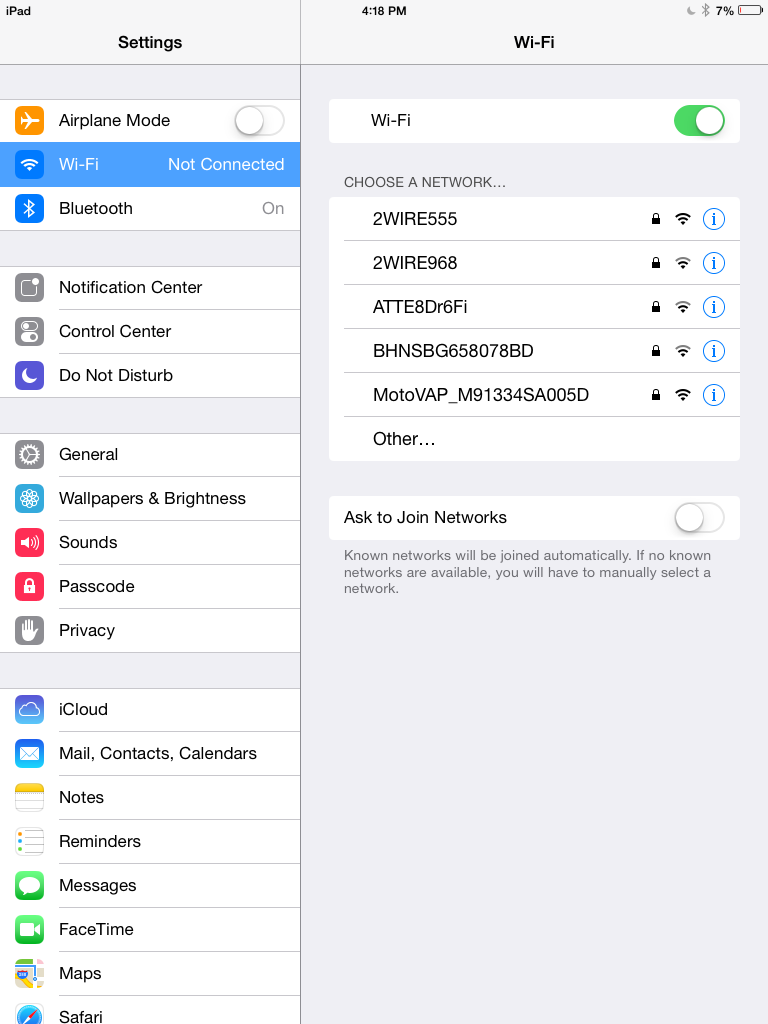
- Tap your enterprise network name from the list of available networks
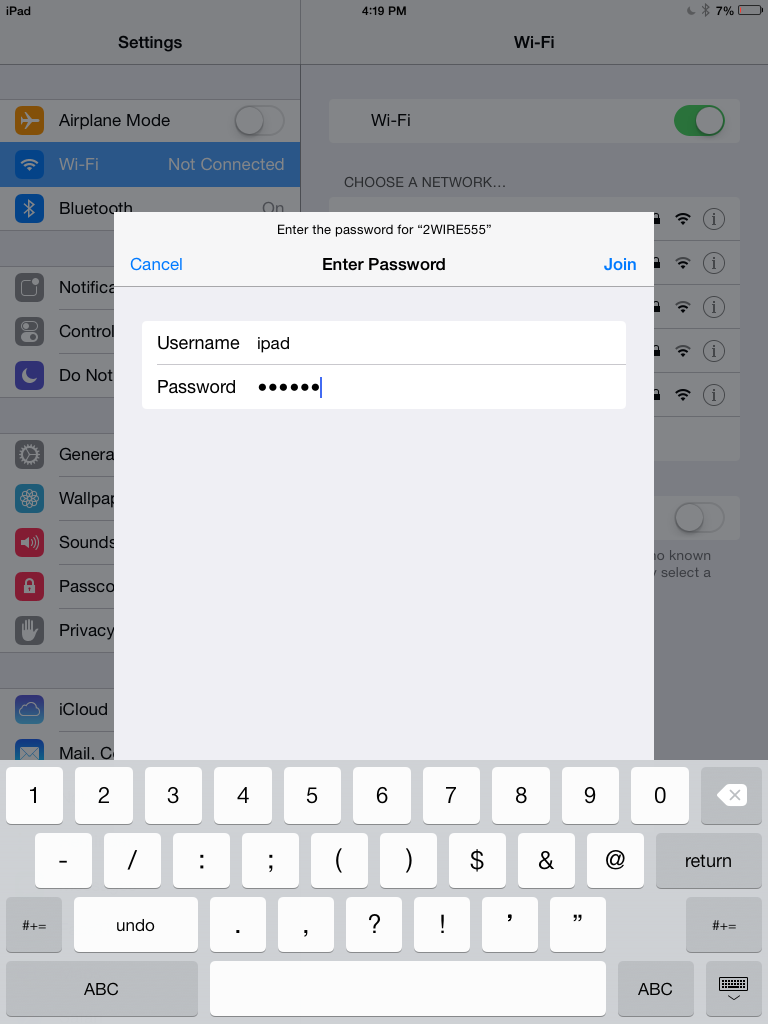
- A dialog appears asking for credentials. Enter your Username and Password, then tap Join
First-Time Connection
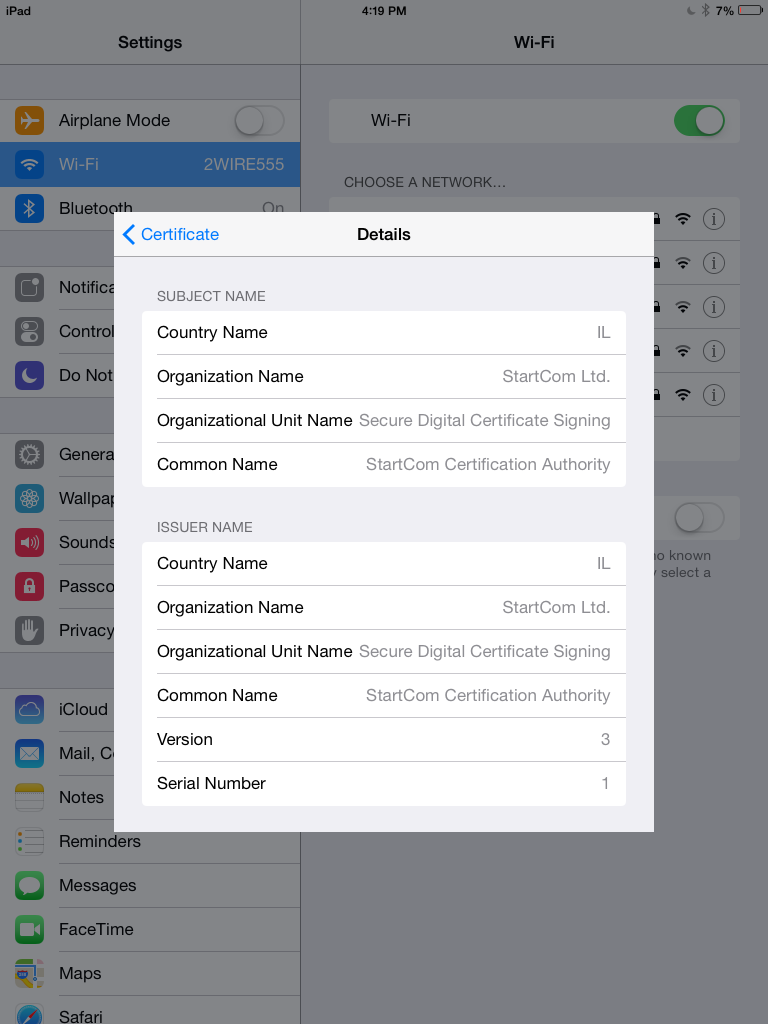
On first connection, iOS will display a certificate trust dialog:
- Review the certificate details
- Verify the server name matches your expected RADIUS server
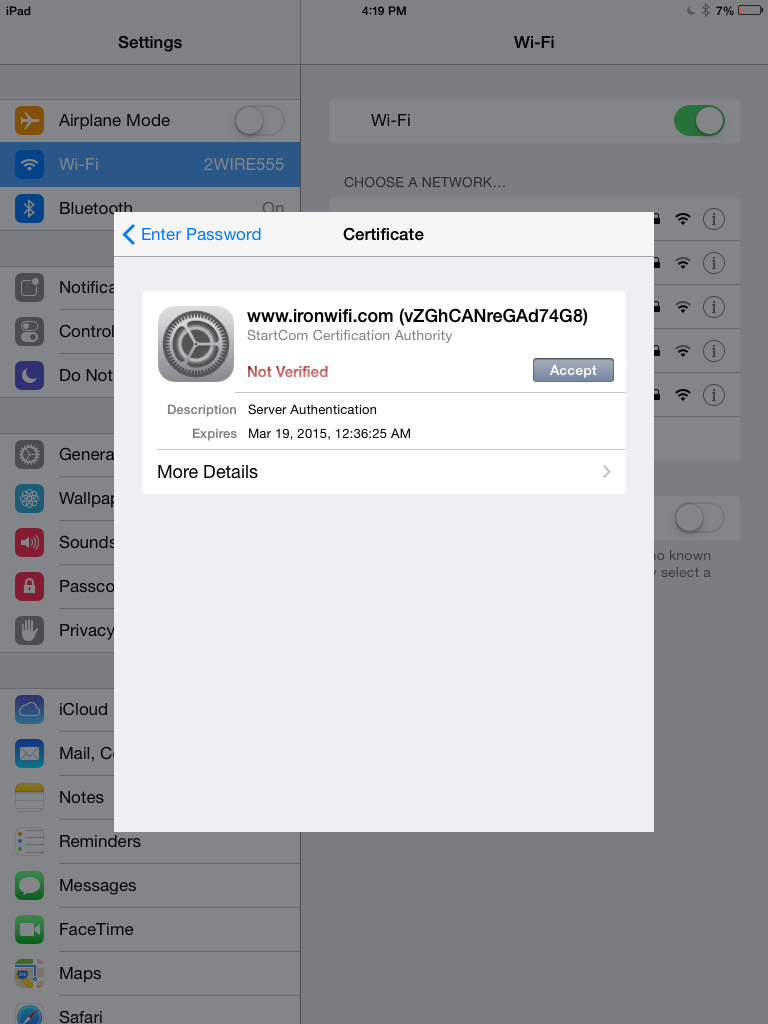
- Tap Trust to accept the certificate (you can skip this page by downloading and installing the certificate to your user's devices manually)
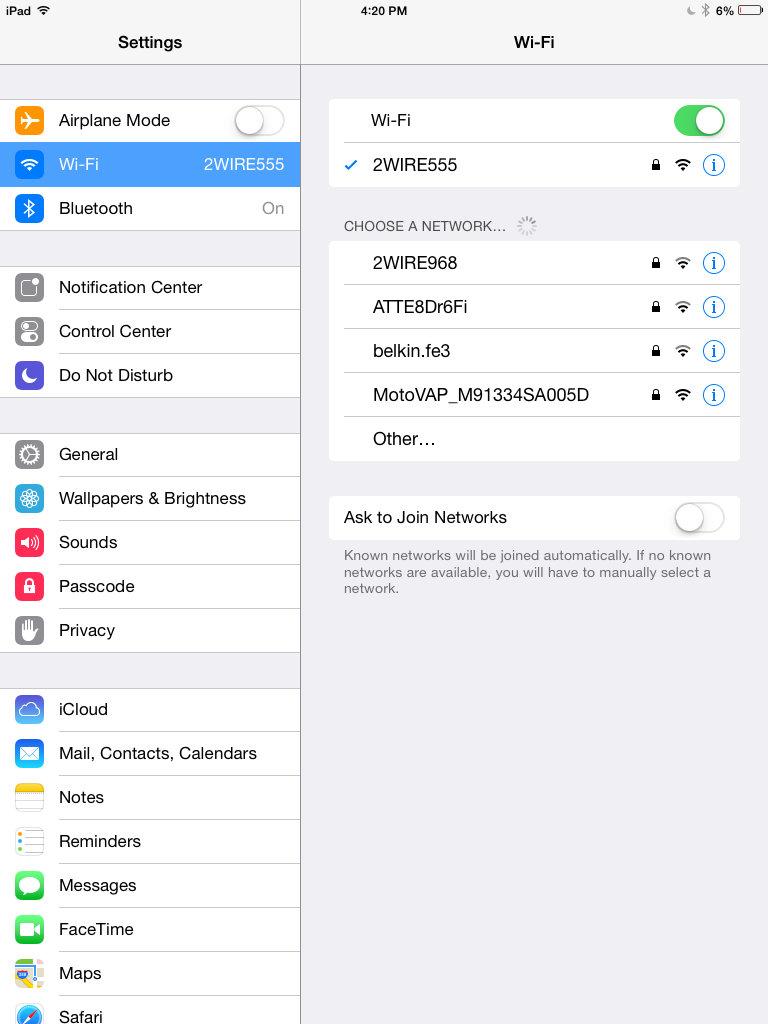
- If provided credentials are valid and the user is allowed to use the wireless network, the device should now be successfully connected
Configuration Profile (MDM)
For enterprise deployment, create a WiFi configuration profile:
Using Apple Configurator 2
- Open Apple Configurator 2
- File > New Profile
- Add WiFi payload
- Configure:
- SSID: Your network name
- Security Type: WPA2-Enterprise
- Protocols: Select PEAP
- Authentication: Username and password
- Username: Leave blank for per-user entry or use variable
- Password: Leave blank for per-user entry
- Add Certificate payload for the CA certificate
- Save and deploy the profile
Profile XML Example
Intune / Jamf Deployment
Microsoft Intune
- Go to Devices > Configuration profiles
- Create new profile for iOS/iPadOS
- Select WiFi template
- Configure:
- WiFi type: Enterprise
- EAP type: PEAP
- Certificate server names: Your RADIUS hostname
- Root certificate for server validation: Select deployed CA cert
Jamf Pro
- Computers/Devices > Configuration Profiles
- Add Network payload
- Select:
- Security Type: WPA2-Enterprise
- Protocol: PEAP
- Configure authentication settings
Troubleshooting
"Unable to Join Network"
- Verify your credentials are correct
- Check that the network is within range
- Forget the network and try again:
- Settings > WiFi > tap (i) > Forget This Network
Certificate Trust Issues
If iOS won't trust the certificate:
- Check if the CA certificate needs to be installed
- Go to Settings > General > About > Certificate Trust Settings
- Enable trust for the certificate
Authentication Loops
If repeatedly prompted for credentials:
- Ensure username format is correct (may need full email)
- Check account isn't locked in IronWiFi console
- Verify password hasn't expired
Profile Installation Fails
- Check the profile isn't corrupted
- Ensure device isn't managed by conflicting MDM
- Review profile in Settings > General > VPN & Device Management
Mac OS Configuration
macOS 13 (Ventura) and Later
- Click WiFi icon in menu bar
- Select your enterprise network
- Enter:
- Username: Your username
- Password: Your password
- Click Join
- Trust the certificate when prompted
802.1X Settings
For advanced configuration:
- System Settings > Network (or WiFi)
- Select your network and click Details
- Configure 802.1X authentication settings
- Set EAP-PEAP parameters
Related Topics
Same protocol on other devices
Other protocols on macOS & iOS
- macOS & iOS — EAP-TLS — certificate-based auth
- macOS & iOS — TTLS + PAP — legacy RADIUS
Foundational reading
Was this page helpful?